

Plotting
This notebook explains the main plotting functions available for a WindFarmNetwork object.
These plotting methods are natively optimized to return high-performance, lightweight, and modern vector SVG representations (svgplot/svgpplot) by default inside notebooks. However, they also seamlessly switch to Matplotlib backends (gplot/pplot) when you supply a custom target axes (e.g. ax=...), giving you the best of both worlds: clean direct display and advanced layout customizability.
Import required modules
[1]:
from optiwindnet.api import WindFarmNetwork, load_repository
[2]:
# Display figures as SVG in Jupyter notebooks
%config InlineBackend.figure_formats = ['svg']
Create a sample network
Note:
load_repository()loads multiple locations from a given path. If no path is given, it loads the built-in locations (more details in Load Location Data Repositories).
[3]:
locations = load_repository()
wfn = WindFarmNetwork(L=locations.anholt, cables=[(2, 1500.0), (5, 1800.0)])
Plot location geometry (L):
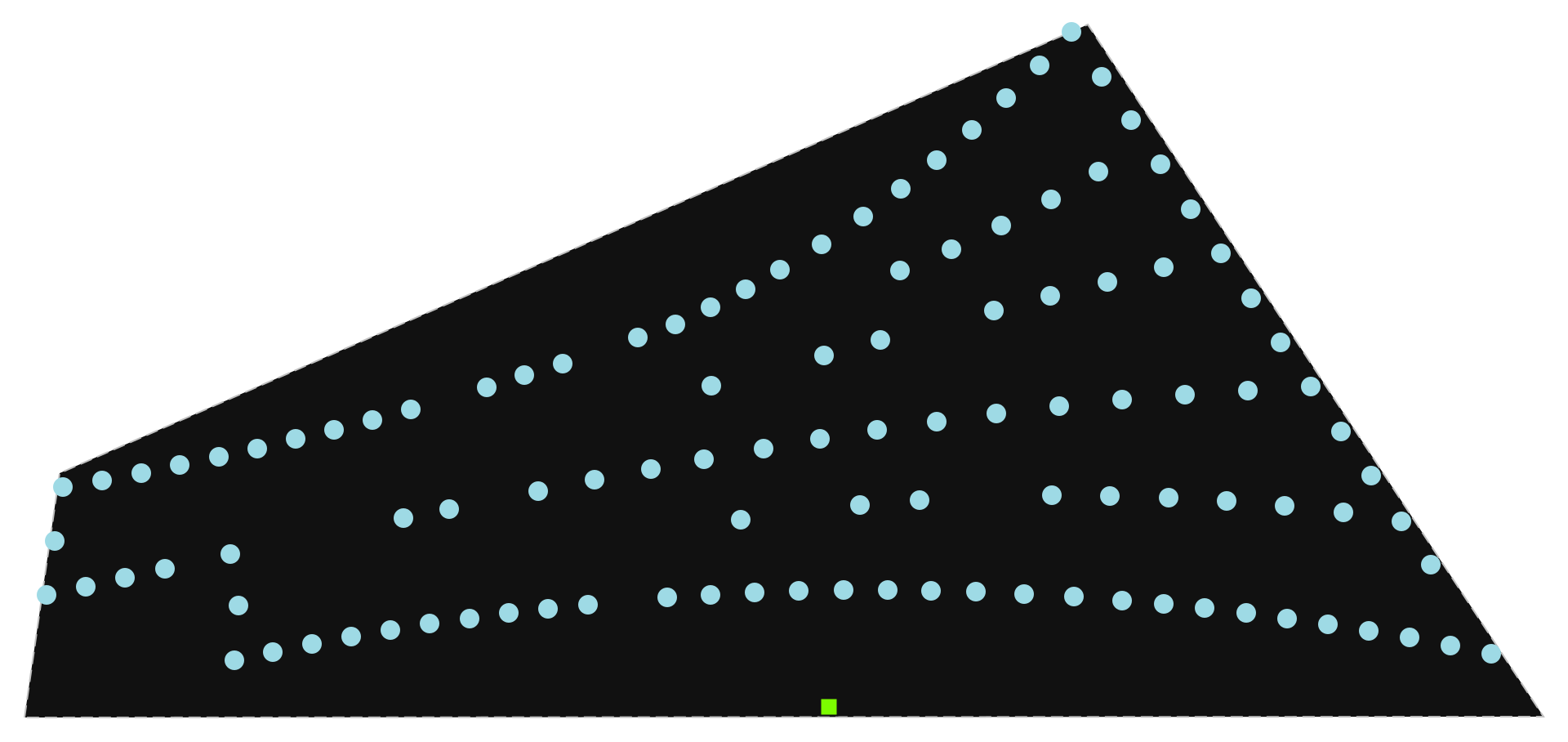
L contains only the raw location data, such as turbine and substation coordinates, borders, and obstacles, without any links or connections between nodes.
As a result, wfn.plot_location() will appear as an edgeless graph, showing only the borders and node elements without network links/edges. Turbines are plotted as circles, and substations as squares.
This plot is useful to check if the location data was correctly loaded into the WindFarmNetwork() instance, before running the optimization.
[4]:
wfn.plot_location()
[4]:
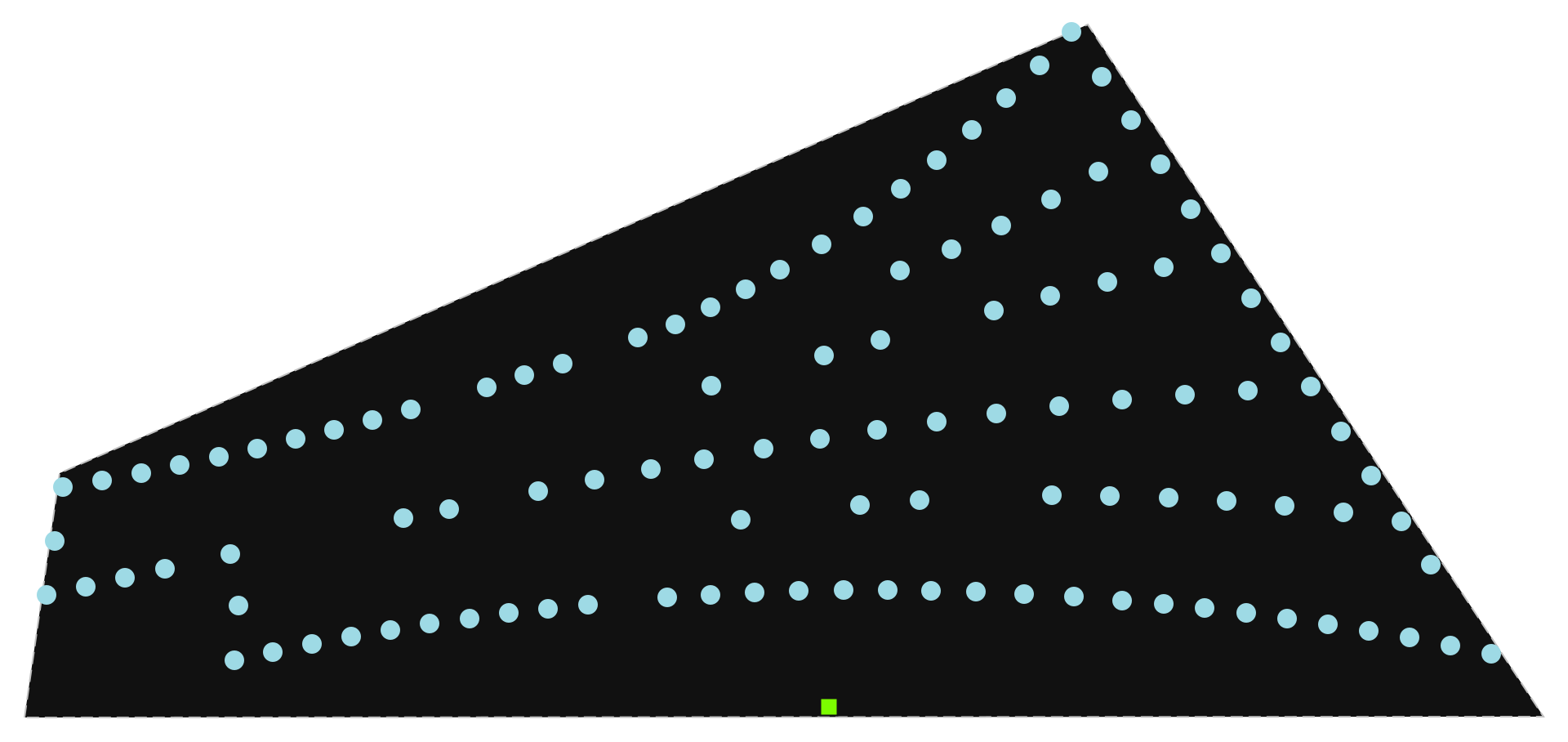
Tip: In a notebook, just put
wfnas the last line of a cell for plotting G.
Before optimization (no
Gyet), it renders the location geometryL.If
Gexists (e.g. after a call tooptimize()), it automatically rendersG.
[5]:
wfn
[5]:
Optimize
To plot and visualize the optimized network, an optimization needs to be performed first. Here, the default router (Heuristics-Esau_Williams) is used.
[6]:
res = wfn.optimize()
Plot the Optimized Network Graph
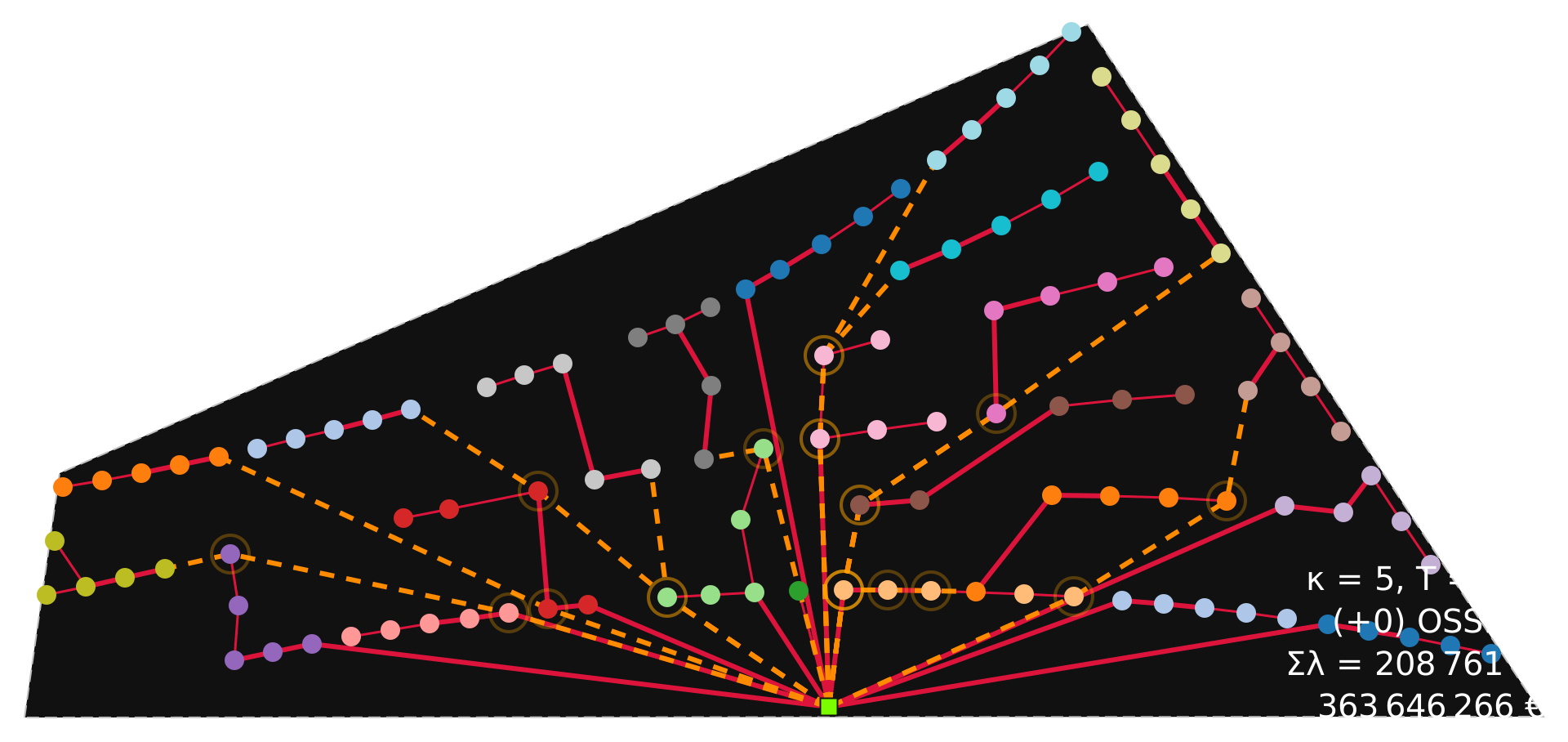
The optimized network graph (G) represents the optimized network with actual routes.
Accordingly, wfn.plot() displays the routes for selected links in the optimized network. The detoured routes are displayed via dashed lines. Detours are the routes created to resolve crossing feeders.
Turbines that belong to the same subtree are assigned the same color. Each cable type is represented with a distinct line thickness (which gets thicker as the cable capacity increases).
[7]:
wfn.plot()
[7]:
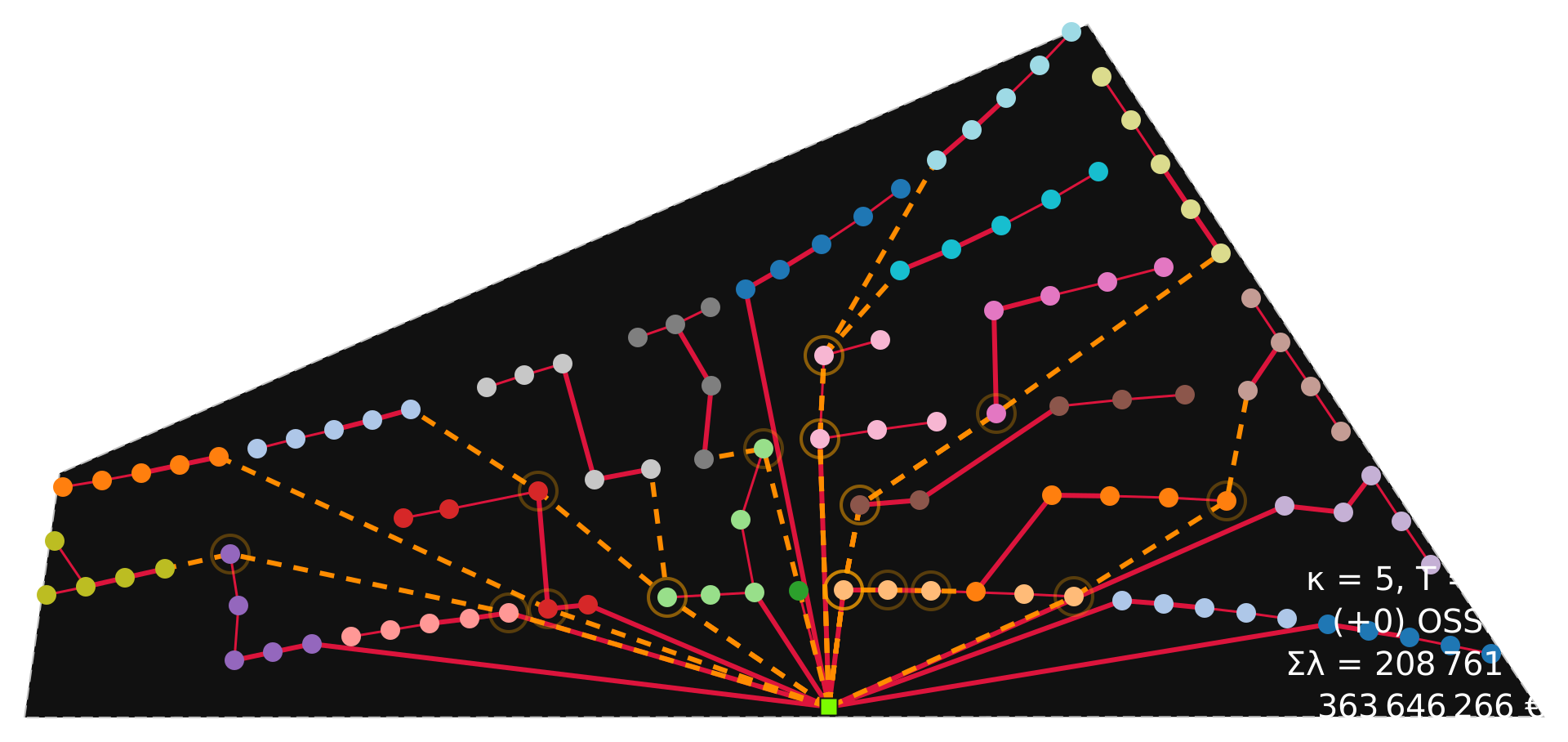
! Reminder: In a notebook, we can plot the optimized network simply by calling
wfn:
[8]:
wfn
[8]:
Plot in a pre-existing axes
[9]:
import matplotlib.pyplot as plt
plt.rcParams['svg.fonttype'] = 'none'
It is also possible to provide a pre-existing plt.Axes object within a Matplotlib figure:
Tip: When you pass the
axkeyword argument to anywfnplotting method, it automatically switches under the hood from the native SVG generator to the Matplotlib backend (gplot/pplot). This allows you to combine and structure multiple plots in standard Matplotlib subplots.
Shortcut (No Imports): If you want to use the Matplotlib backend (
gplot/pplot) but don’t want to import Matplotlib/Pyplot in your code, you can simply passax=None(e.g.,ax = wfn.plot(ax=None)). The plotting method will detect theaxkey, switch to the Matplotlib backend, internally import Matplotlib to create a new figure and axes, and return the activeplt.Axesobject.
[10]:
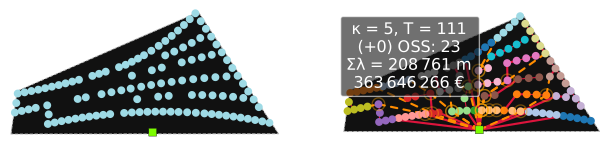
fig, (ax1, ax2) = plt.subplots(1, 2, facecolor='none', figsize=(8, 4))

wfn.plot_location(ax=ax1)
wfn.plot(ax=ax2, legend=False)
[10]:
<Axes: >
📊 Optional parameters
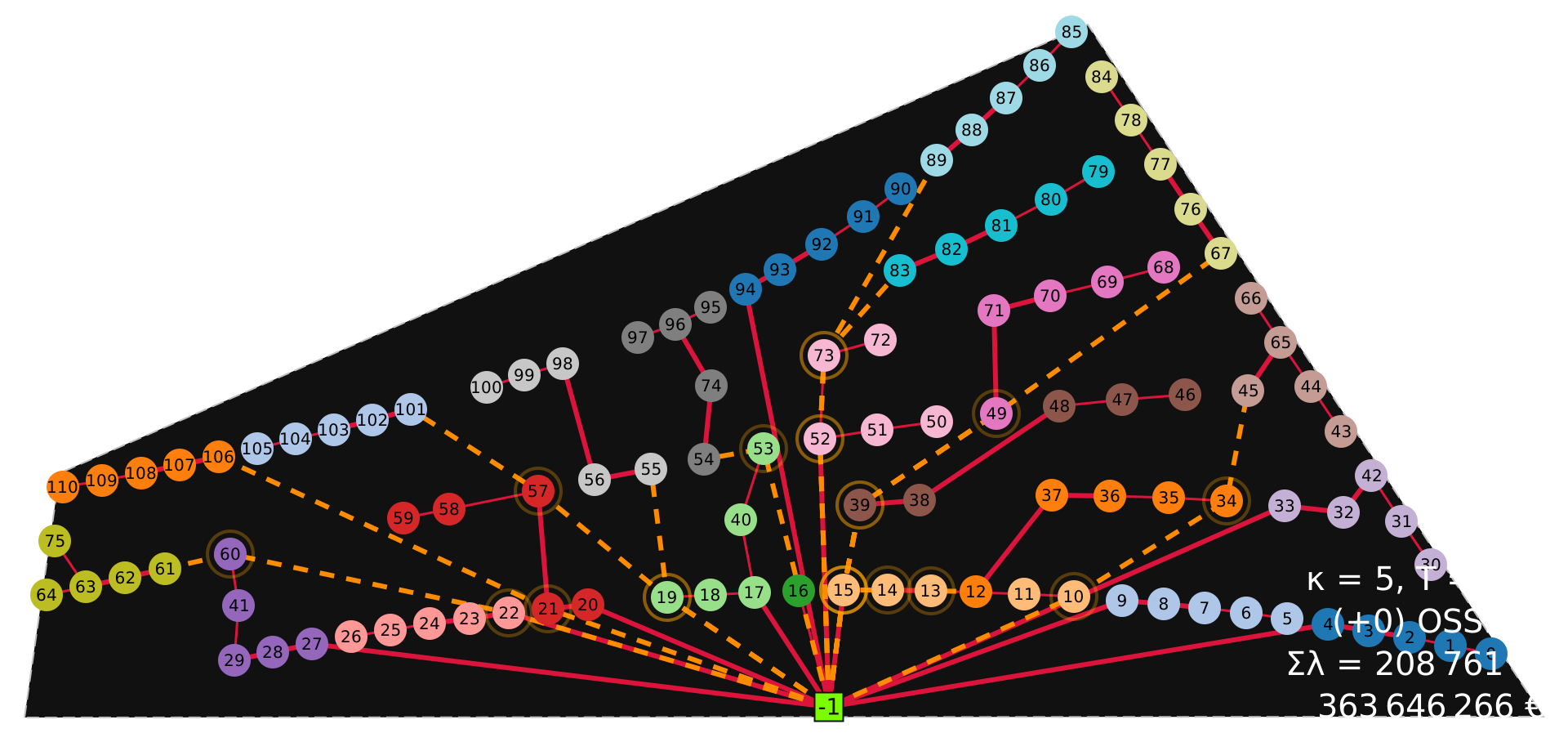
🏷️ node_tag (text labels)
Node tags make it easier to identify each turbine and substation in the plot. Here is a table of possible values and their effects:
|
Behavior |
|---|---|
|
Node id number used as tag (id is set from the order of appearance in data, starting from 0 for turbines and negative for substations). |
|
Node label used as tag. Labels can be defined in the |
|
Use the value of the load exported by the node. |
|
Use the value of |
Note: The default symbol sizes are optimized for tags with up to three characters using the default font size, longer tags might not fit inside the symbol and become difficult to read.
[11]:
wfn.plot(node_tag=True)
[11]:
Labels in location data files
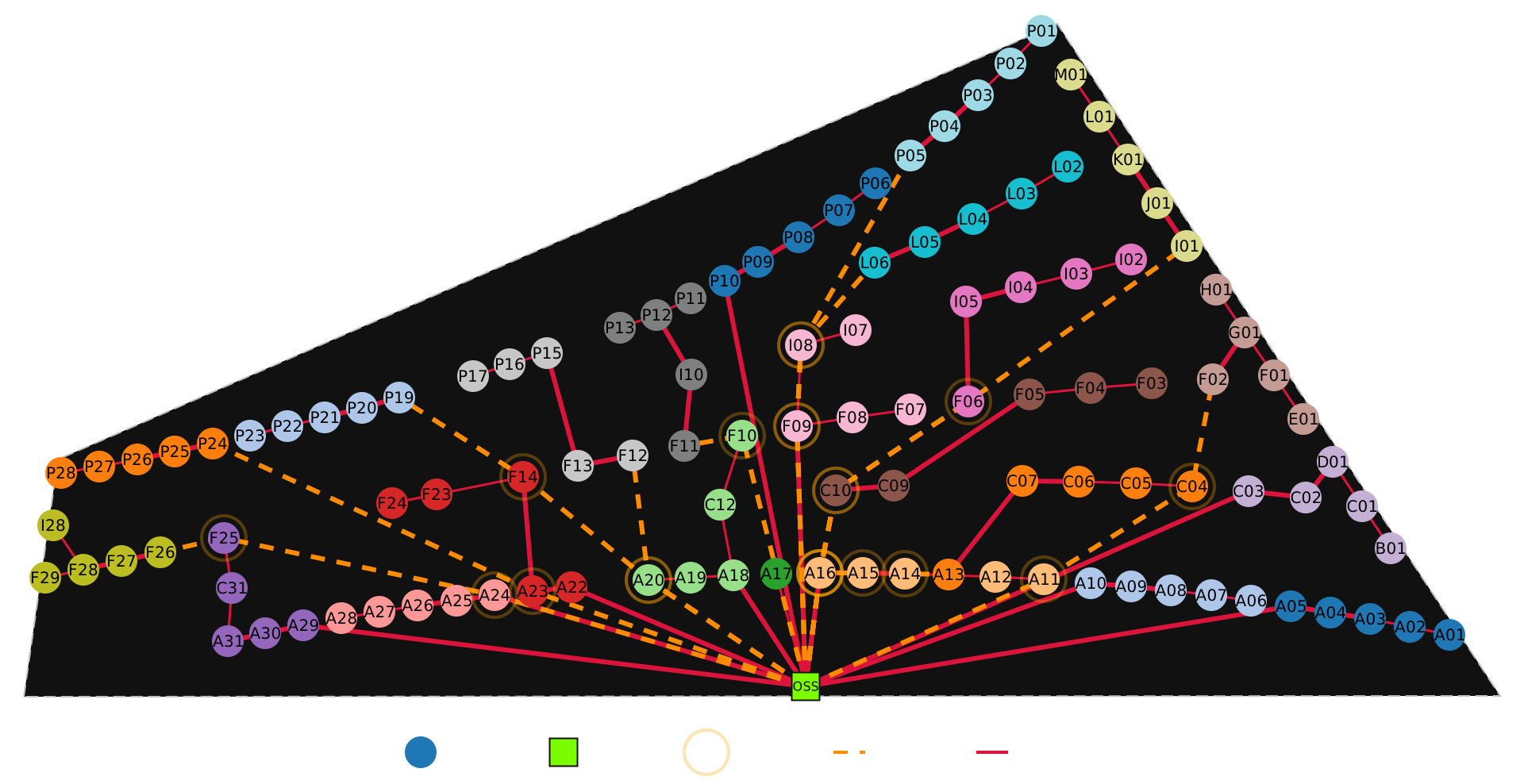
Labels can be defined in both .yaml and .osm.pbf files.
``.yaml`` files: Any identifier placed before the coordinates is loaded as a node label (
labelattribute). Example:
SUBSTATIONS: |-
  OSS 56°35.748'N 11°09.174'E

TURBINES: |-
  A01 56°30.477'N 11°11.026'E
  A02 56°30.810'N 11°11.078'E
Here, OSS, A01 and A02 are node labels.
``.osm.pbf`` files: Node tags
'name'or'ref'are loaded as a node label (labelattribute).
Example (OSM XML structure):
<node id="123456" lat="56.5083" lon="11.1870">
  <tag k="name" v="OSS"/>
  <tag k="power" v="substation"/>
</node>
In this case, the substation node will be tagged with the label 'OSS'.
[12]:
wfn.plot(node_tag='label', infobox=False, legend=True)
[12]:
[13]:
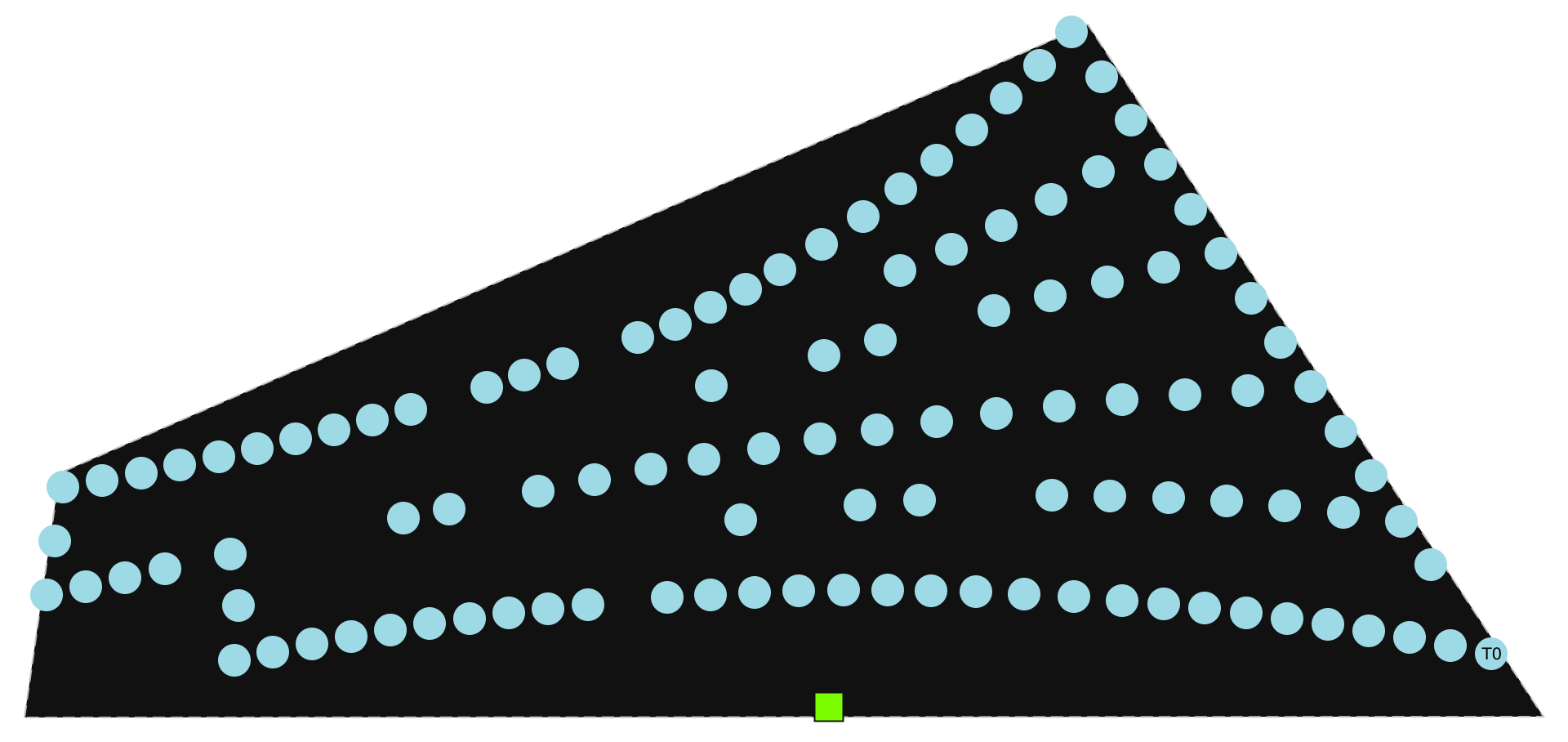
wfn.L.nodes[0]['example_label']='T0'
[14]:
wfn.plot_location(node_tag='example_label')
[14]:
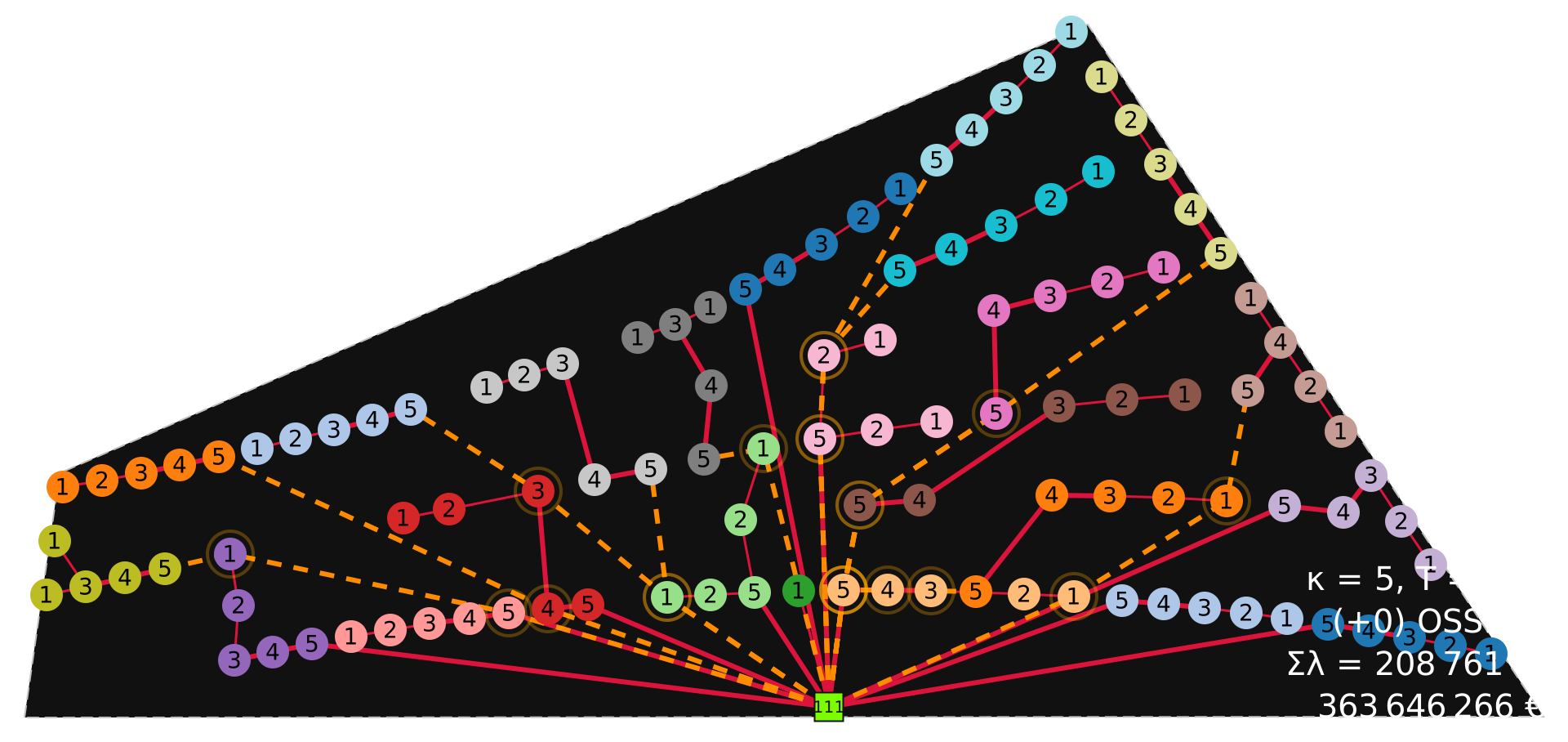
The nodes can also be tagged with the amount of power (normalized by the turbine nominal power) they export towards the substation:
The turbine tag represents the number of turbines exporting power through it, (i.e. number of turbines upstream, including itself).
The substation tag represents the total number of connected turbines.
[15]:
wfn.plot(node_tag='load')
[15]:
🎨 dark (color theme)
The plotting methods try to match the operating system’s theme via Python package darkdetect. This package detects the system’s theme and not JupyterLab’s theme, so it may lead to non-ideal results if they do not match.
The example notebooks are created from a dark-themed system, but the figures might have a light background when the notebooks are run on a different computer.
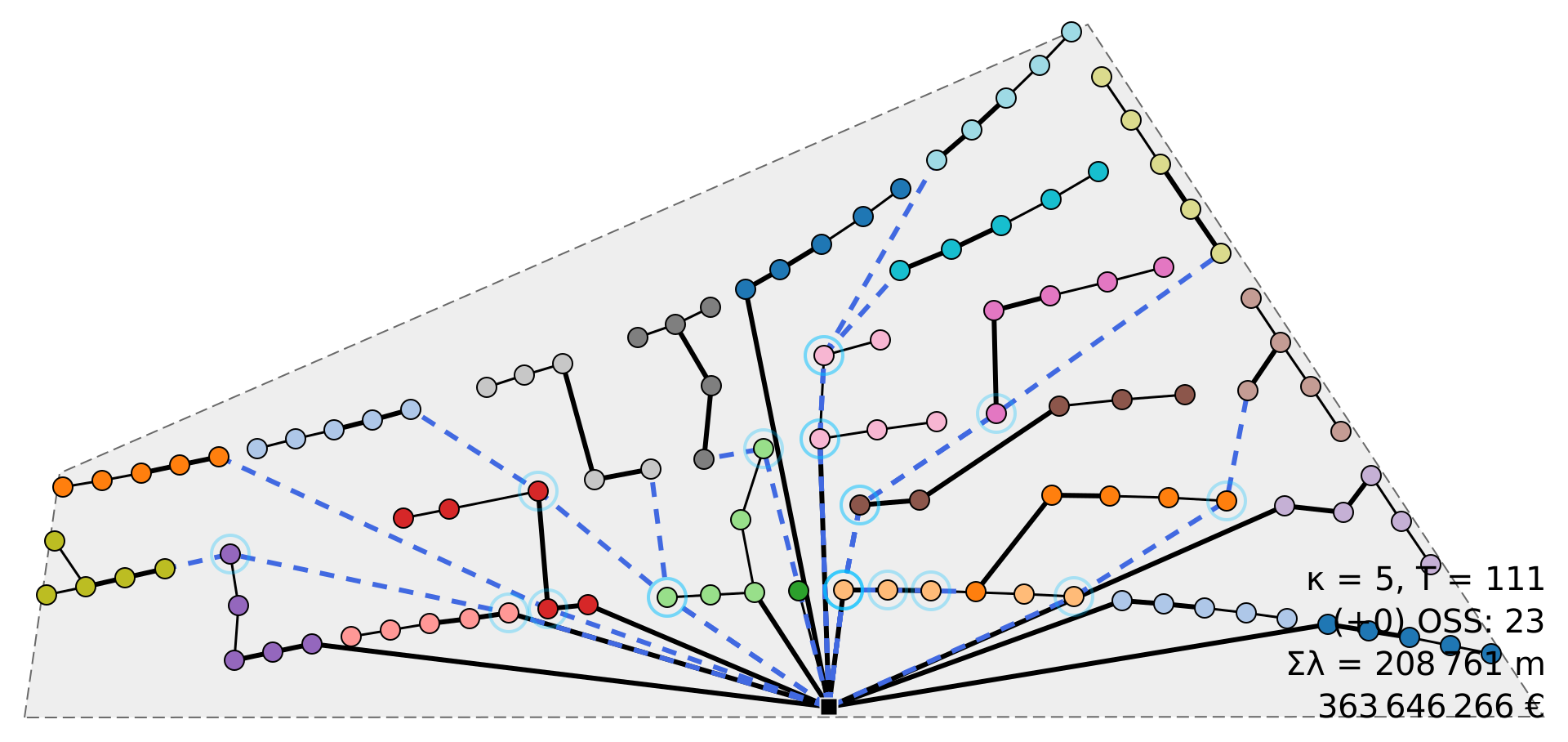
The theme can be enforced programmatically by setting the argument dark to True or False:
[16]:
wfn.plot(dark=False)
[16]:
🔄 landscape_angle (rotation)
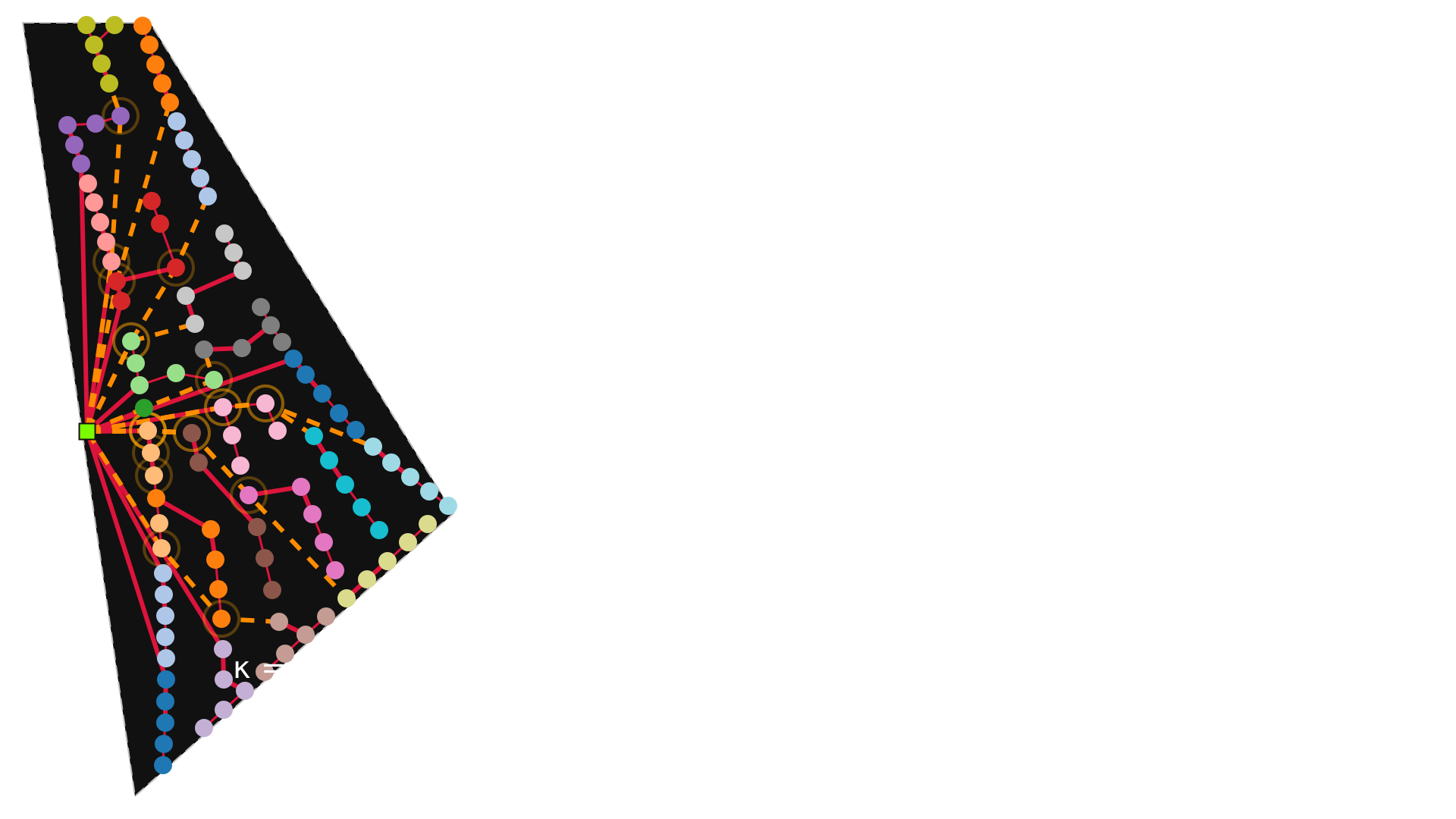
Each location included in OptiWindNet has a graph attribute called landscape_angle.
[17]:
wfn.L.graph['landscape_angle']
[17]:
81.8
This is the angle by which to rotate the site so as to orient the widest dimension horizontally, which suits a landscape figure (as opposed to portrait). For orienting the location so that the north is up, pass the argument landscape=False (or set wfn.L.graph['landscape_angle'] = 0).
[18]:
wfn.plot(landscape=False)
[18]:
Plotting Auxiliary Graphs
Of the five plot methods, wfn.plot_location() and wfn.plot() have been presented above.
The remaining plot methods are for the auxiliary graphs navigation_mesh, available_links, and selected_links, which are relevant mainly for debugging and development. For a more detailed explanation of their meaning and purpose, consult the paper.
Navigation mesh
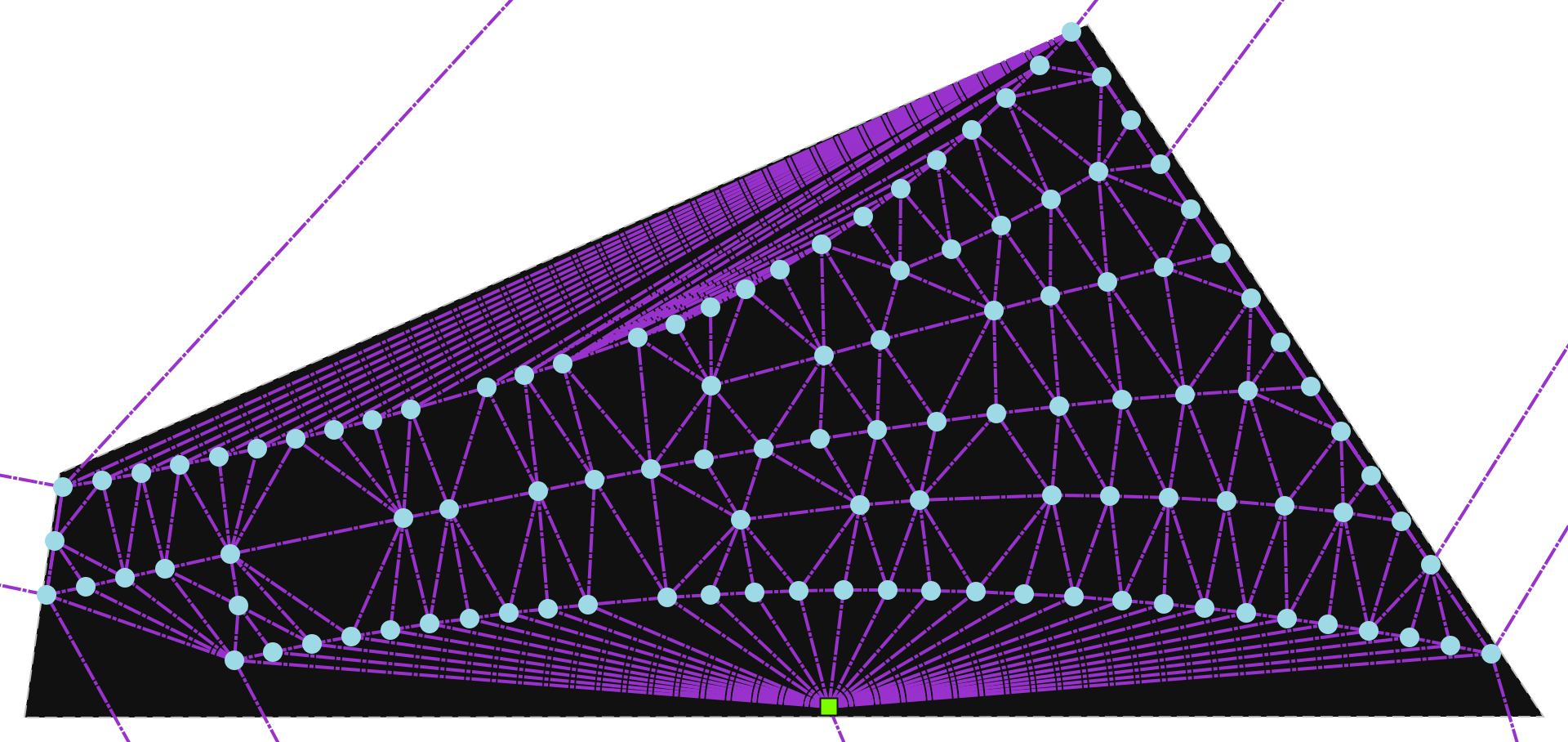
The navigation mesh is a triangulation of all vertices (coordinate pairs that define either turbines, substations or obstacles) of the location. An additional triangle is added (the supertriangle) such as to contain all vertices inside it (it does not fit in the plot, but can be inferred by the edges interrupted at the figure’s borders). This mesh is obtained via a constrained Delaunay triangulation and stored as a planar embedding in wfn.P.
[19]:
wfn.plot_navigation_mesh()
[19]:
Available Links
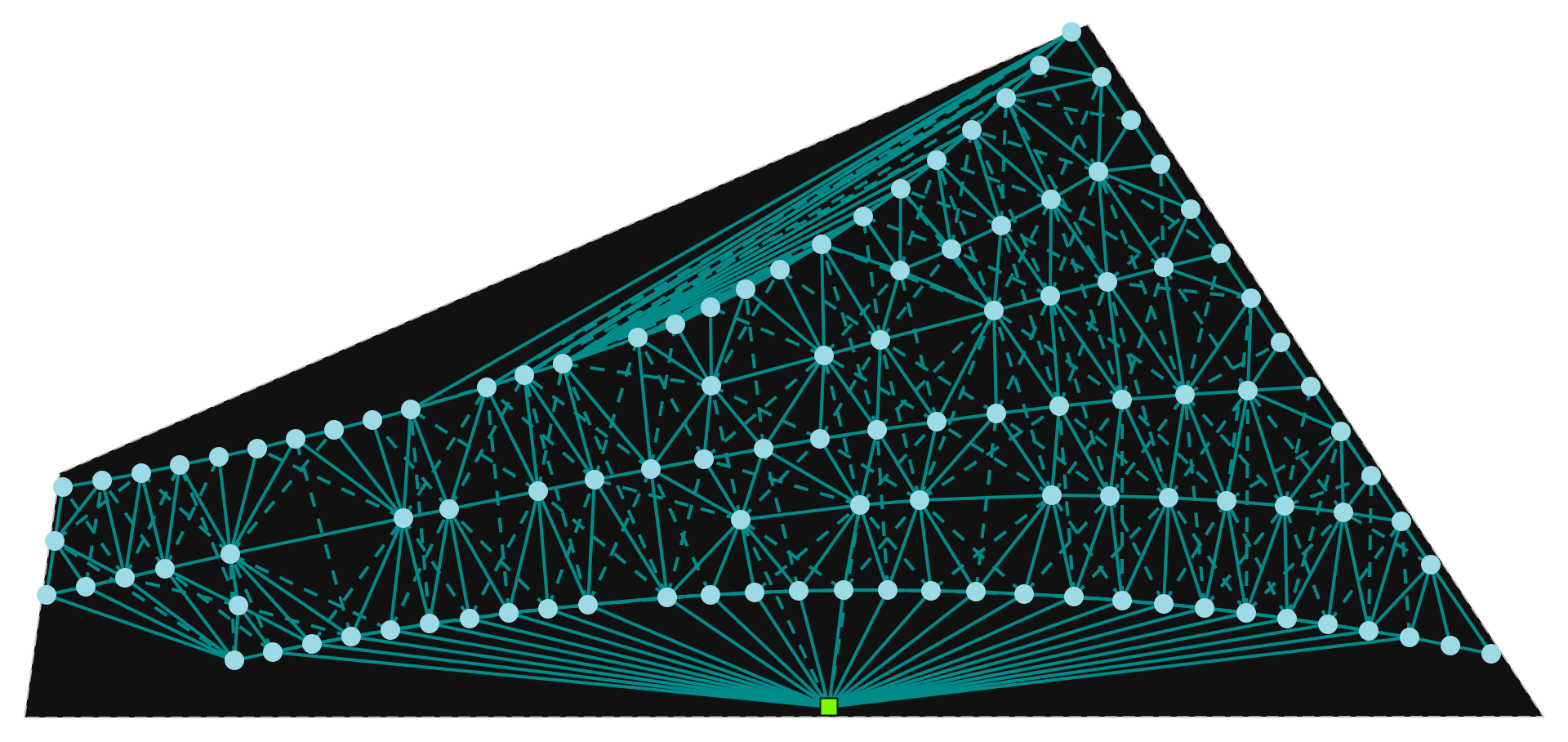
The available links graph is derived from the Delaunay triangulation of the turbine and substation vertices, extended with the additional diagonal links. This graph is stored in wfn.A and represents the search space, except for the star links from each substation to each turbine (which are ommited for clarity). The optimization algorithm selects a subset of the links in this graph.
The resulting plot encodes the available links using different line styles and colors to distinguish link types:
Line style:
Solid lines: direct Delaunay links
Dashed lines: diagonal links
Line color:
in the dark theme:
Cyan: direct links
Green: obstructed links
in the light theme:
Green: direct links
Red: obstructed links
[20]:
wfn.plot_available_links()
[20]:
Selected Links
wfn.plot_selected_links() displays the links selected from the available links by the router algorithm.
[21]:
wfn.plot_selected_links()
[21]:
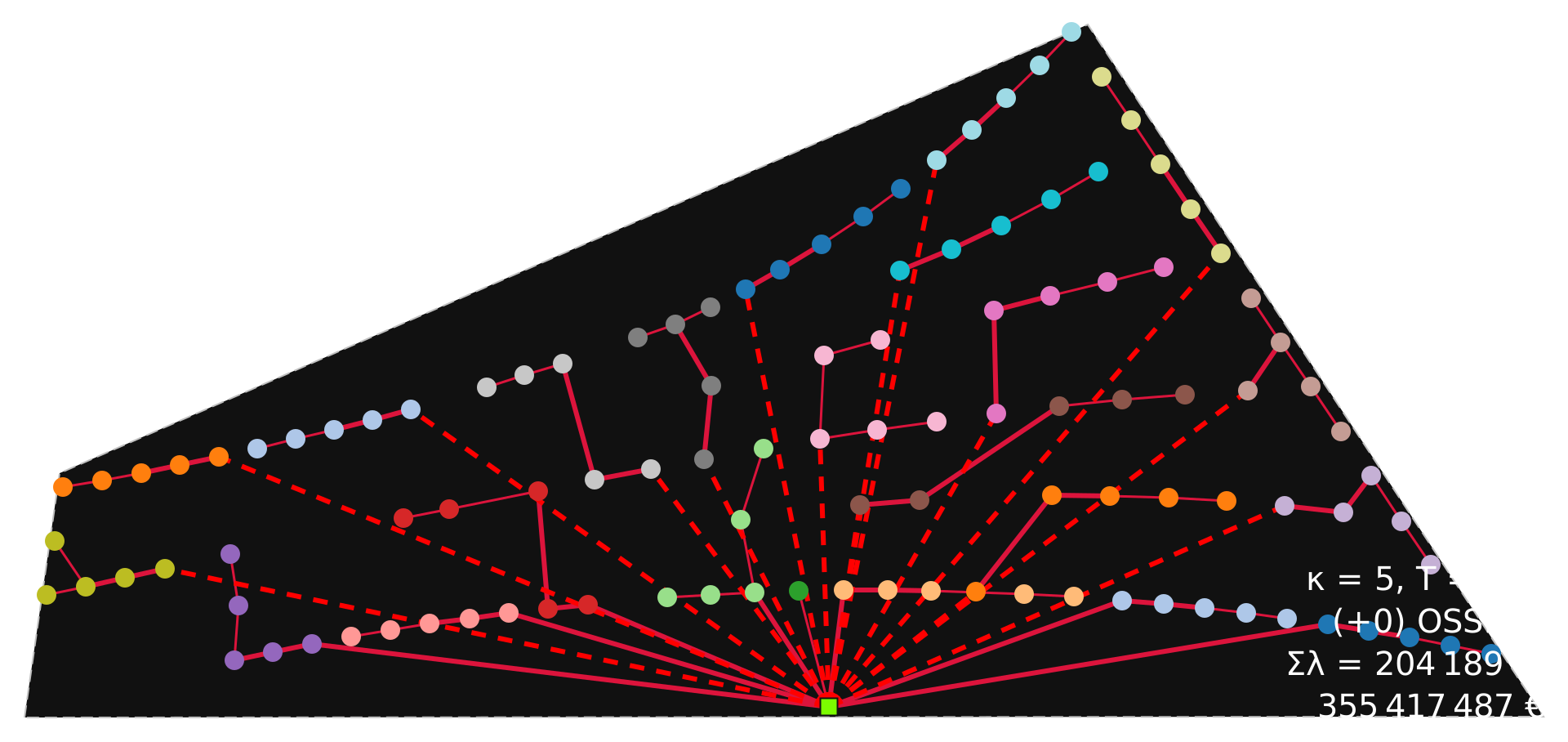
To clarify the difference between wfn.plot_selected_links() and wfn.plot(), it’s important to distinguish between a link and a route:
link: represents the electrical connection between two nodes (e.g., turbine to substation), without considering the actual implementation of the connection. (Displayed by
wfn.plot_selected_links())route: represents the geographical path for the cable to implement a link, including contours to go around borders or obstacles and detours to avoid cable crossings by the feeders. (Displayed by
wfn.plot())