Plotting
This notebook demonstrates the plotting features of OptiWindNet.
[1]:
from optiwindnet.importer import load_repository
from optiwindnet.interarraylib import G_from_S, assign_cables
from optiwindnet.mesh import make_planar_embedding
from optiwindnet.pathfinding import PathFinder
from optiwindnet.heuristics import constructor
import networkx as nx
Create a sample network
[2]:
locations = load_repository()
L = locations.london
P, A = make_planar_embedding(L)
S = constructor(A, capacity=7)
Gʹ = G_from_S(S, A)
G = PathFinder(Gʹ, planar=P, A=A).create_detours()
Using SVG-based svgplot()
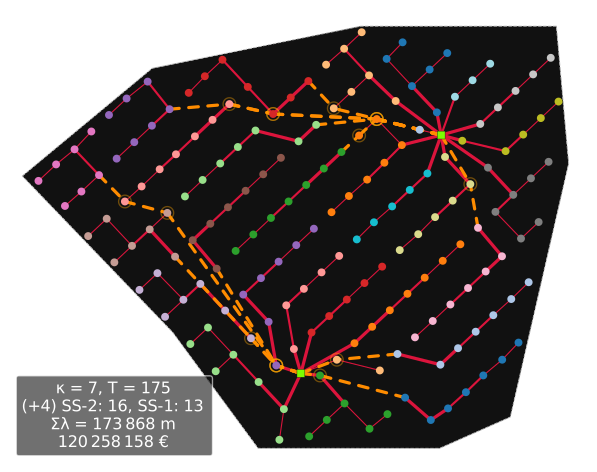
The primary SVG-based plotting functions in OptiWindNet are svgplot() and svgpplot(). They produce extremely clean, lightweight, and modern SVG figures natively suitable for web and Jupyter notebook displays, keeping the .ipynb files small and search-friendly.
[3]:
from optiwindnet.svg import svgplot, svgpplot
[4]:
svgplot(G)
[4]:
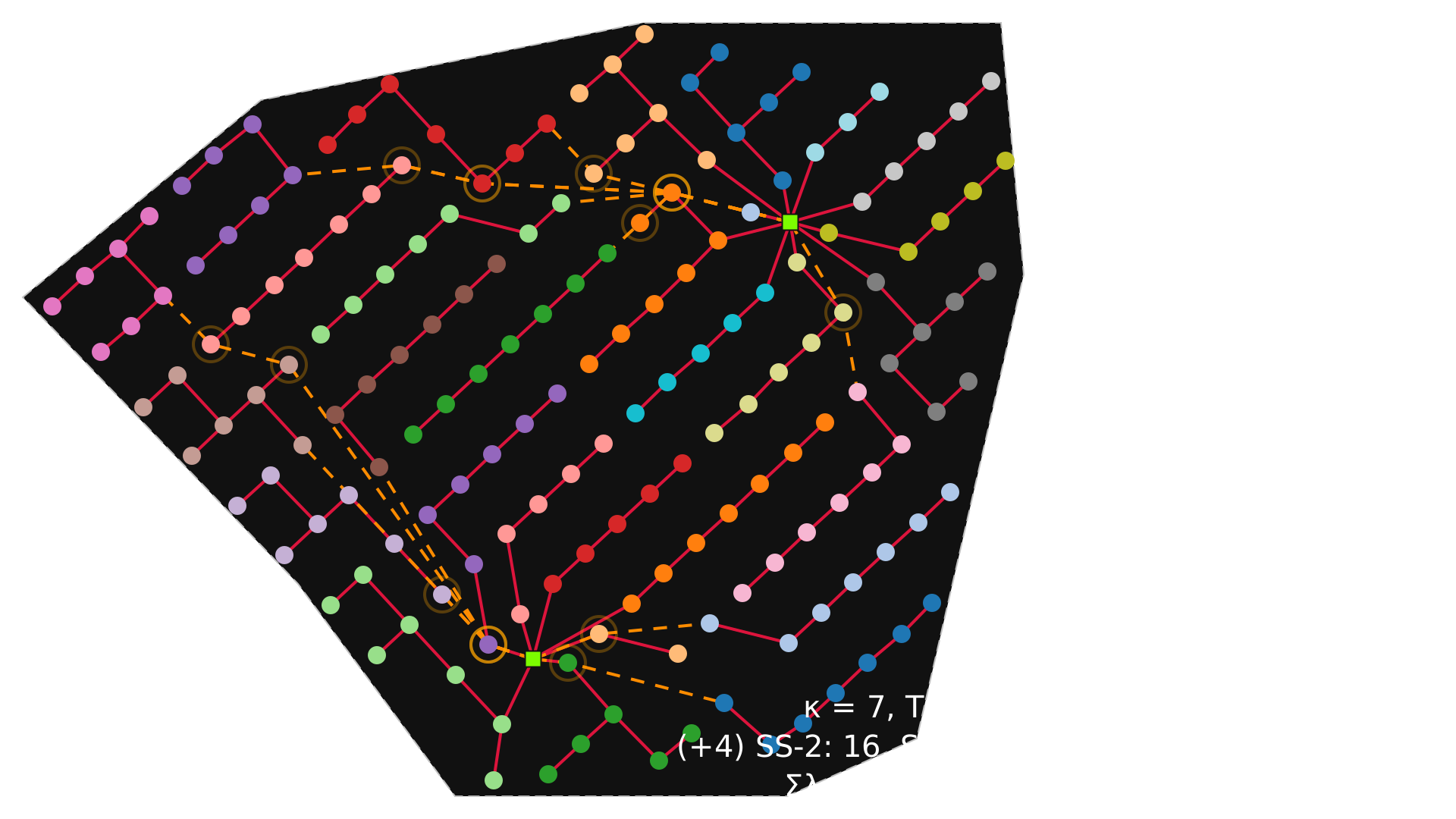
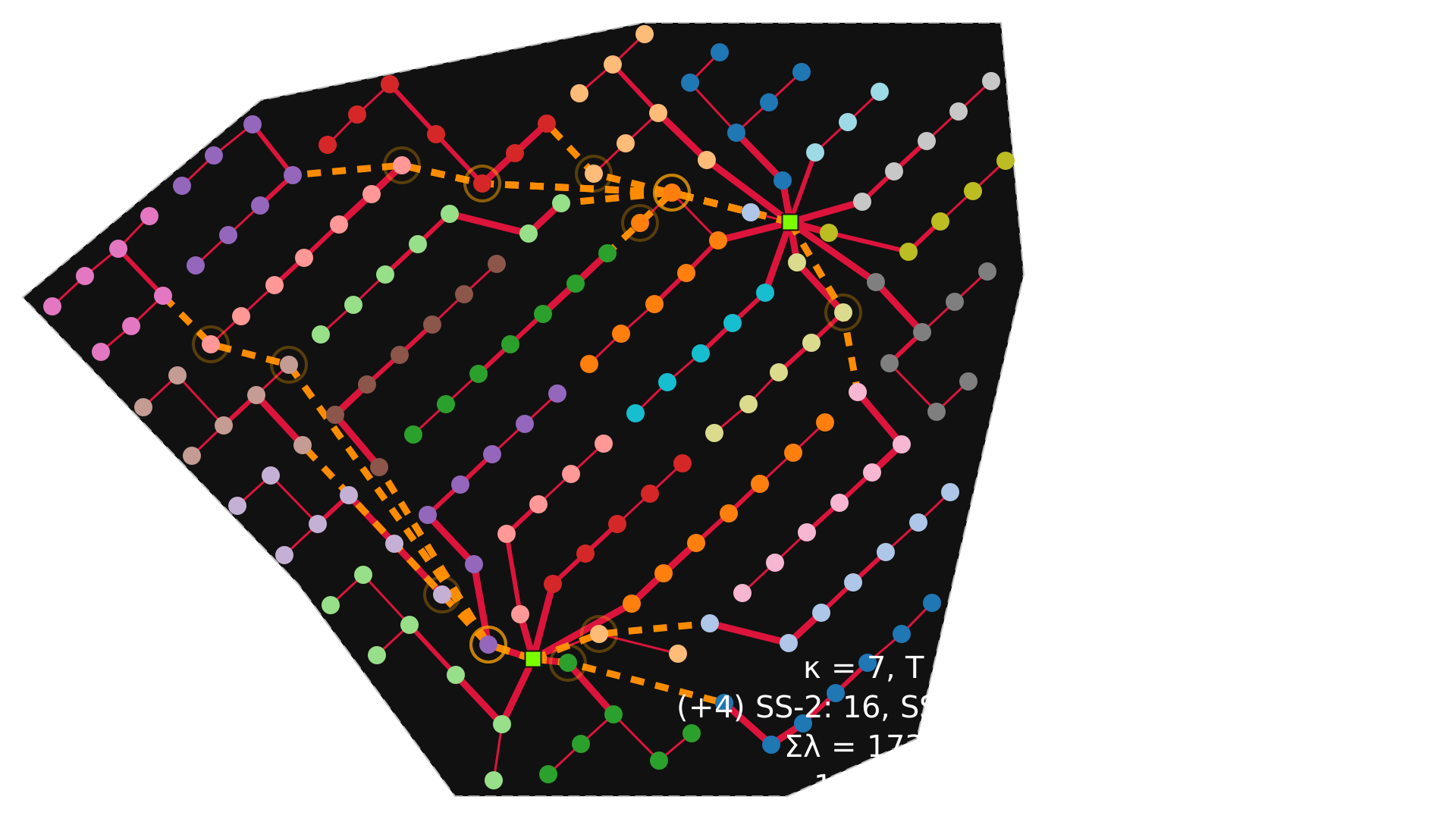
If G is assigned cable types, it is encoded in the thickness of the edges (higher capacities represented by thicker lines). The total network cost is also added to the infobox.
[5]:
# one 2-tuple for each cable type: (capacity, linear cost)
# capacities must be increasing
assign_cables(G, cables=[(2, 400), (4, 600), (7, 900)])
[6]:
svgplot(G)
[6]:
Node tags and figure legends
svgplot() supports a variety of node tagging options and automatic legend strip generation. Use the node_tag argument to select what information is rendered inside the nodes:
[7]:
svgplot(G, node_tag='label', infobox=False, legend=True)
[7]:
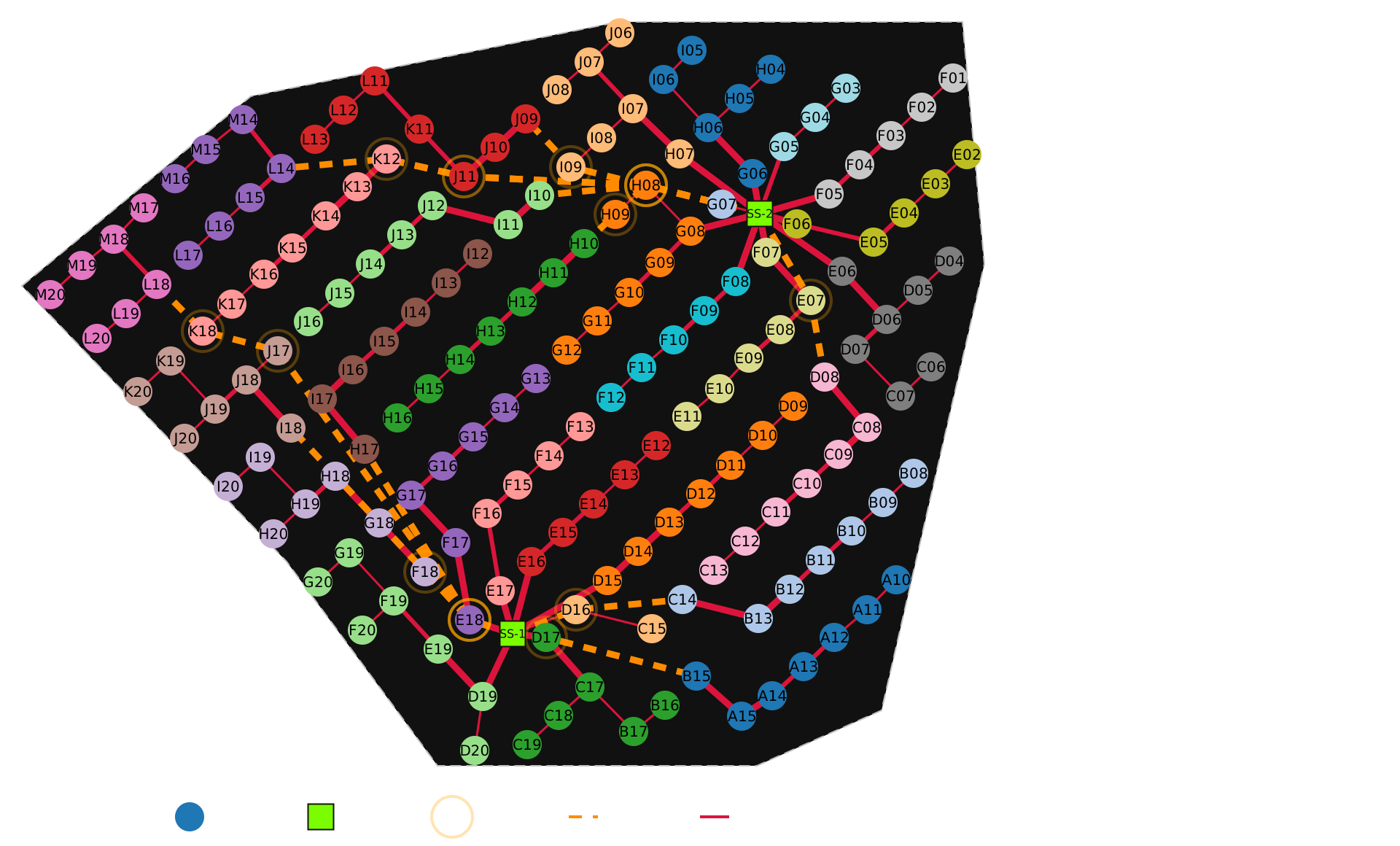
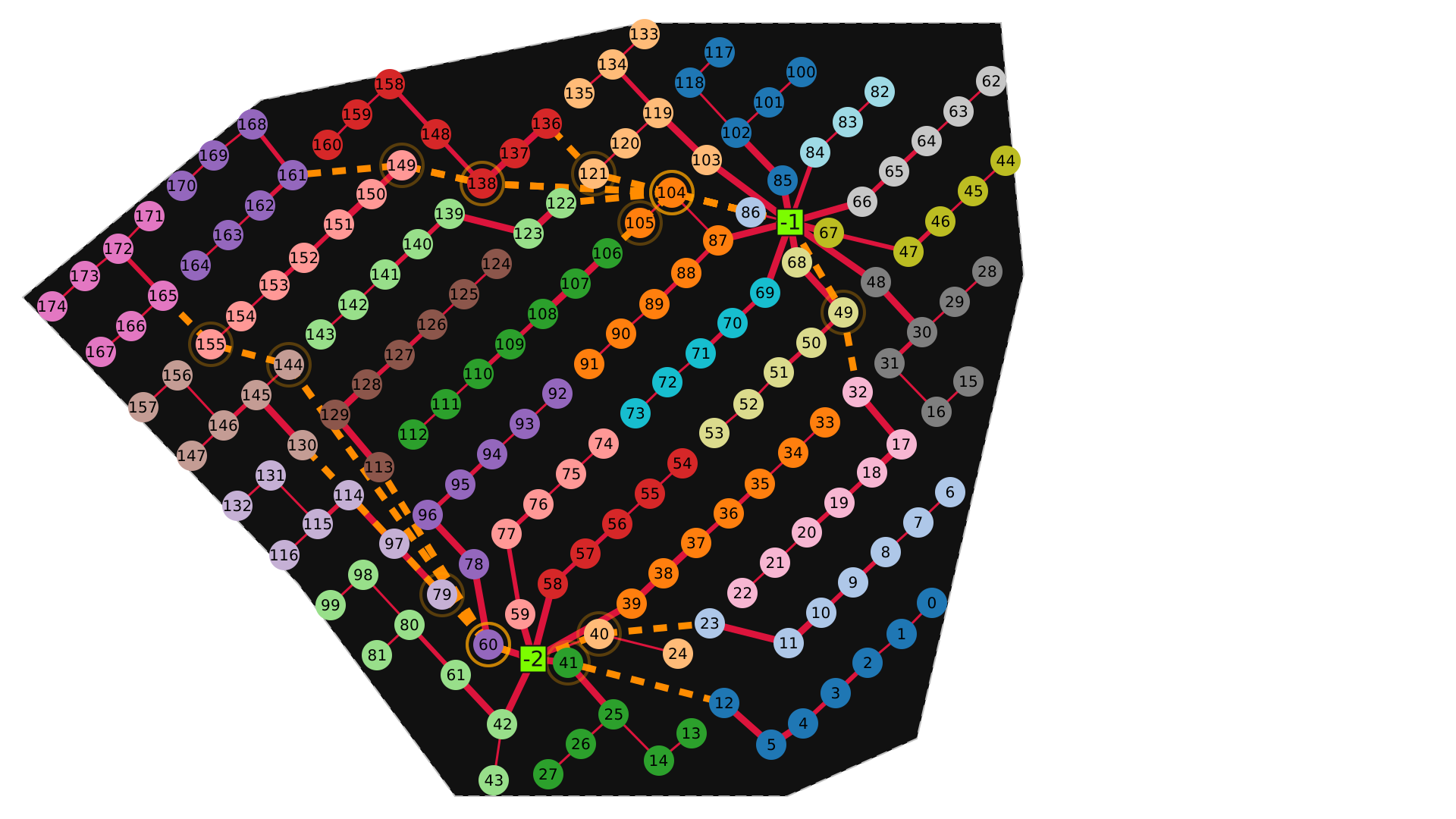
Alternatively, the internal index of the nodes can be shown instead of their labels by setting node_tag=True:
[8]:
svgplot(G, node_tag=True, infobox=False)
[8]:
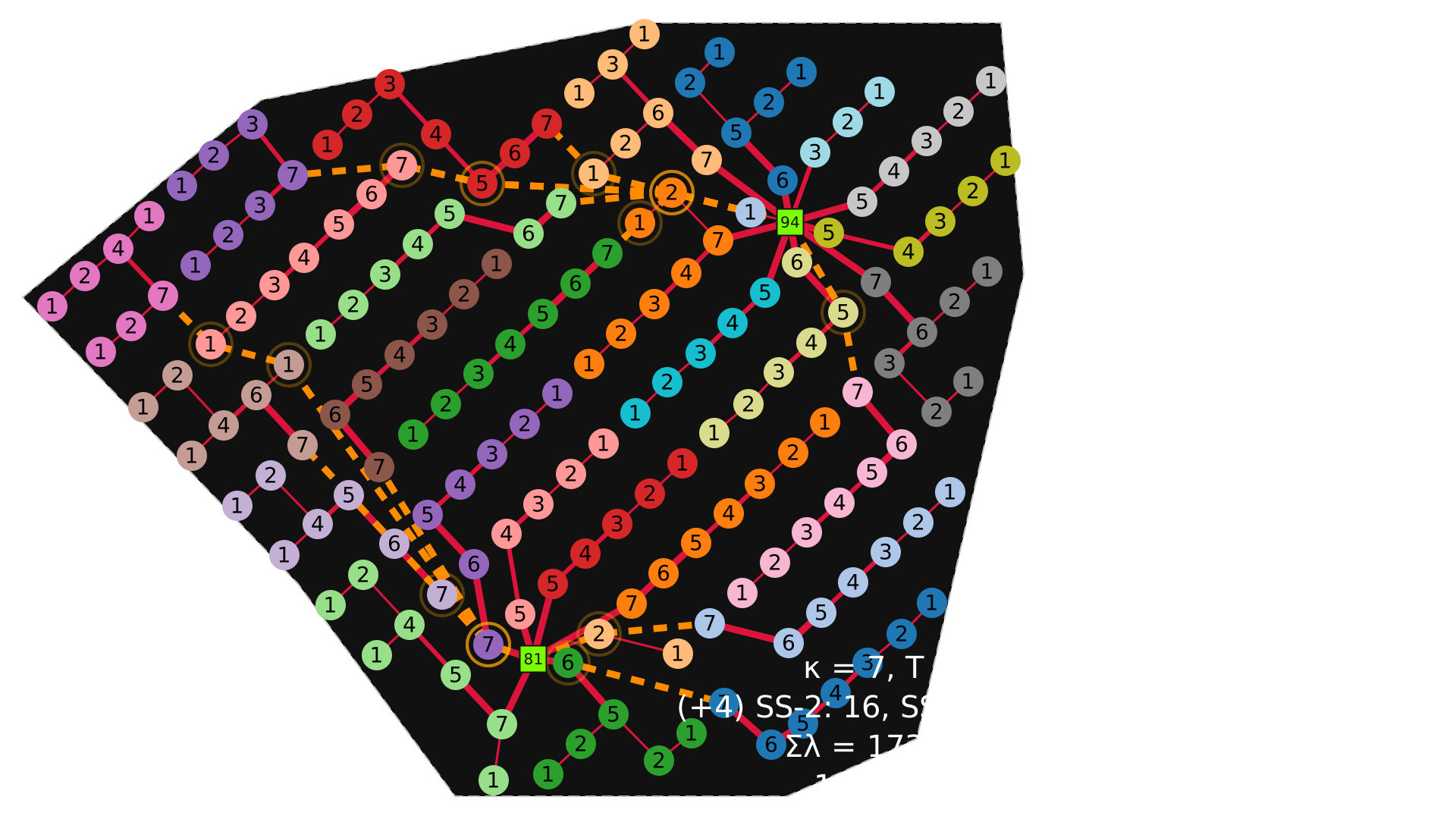
The nodes can also be tagged by the power flow (load) they export towards the substation:
[9]:
svgplot(G, node_tag='load')
[9]:
Displaying in loops and saving to files
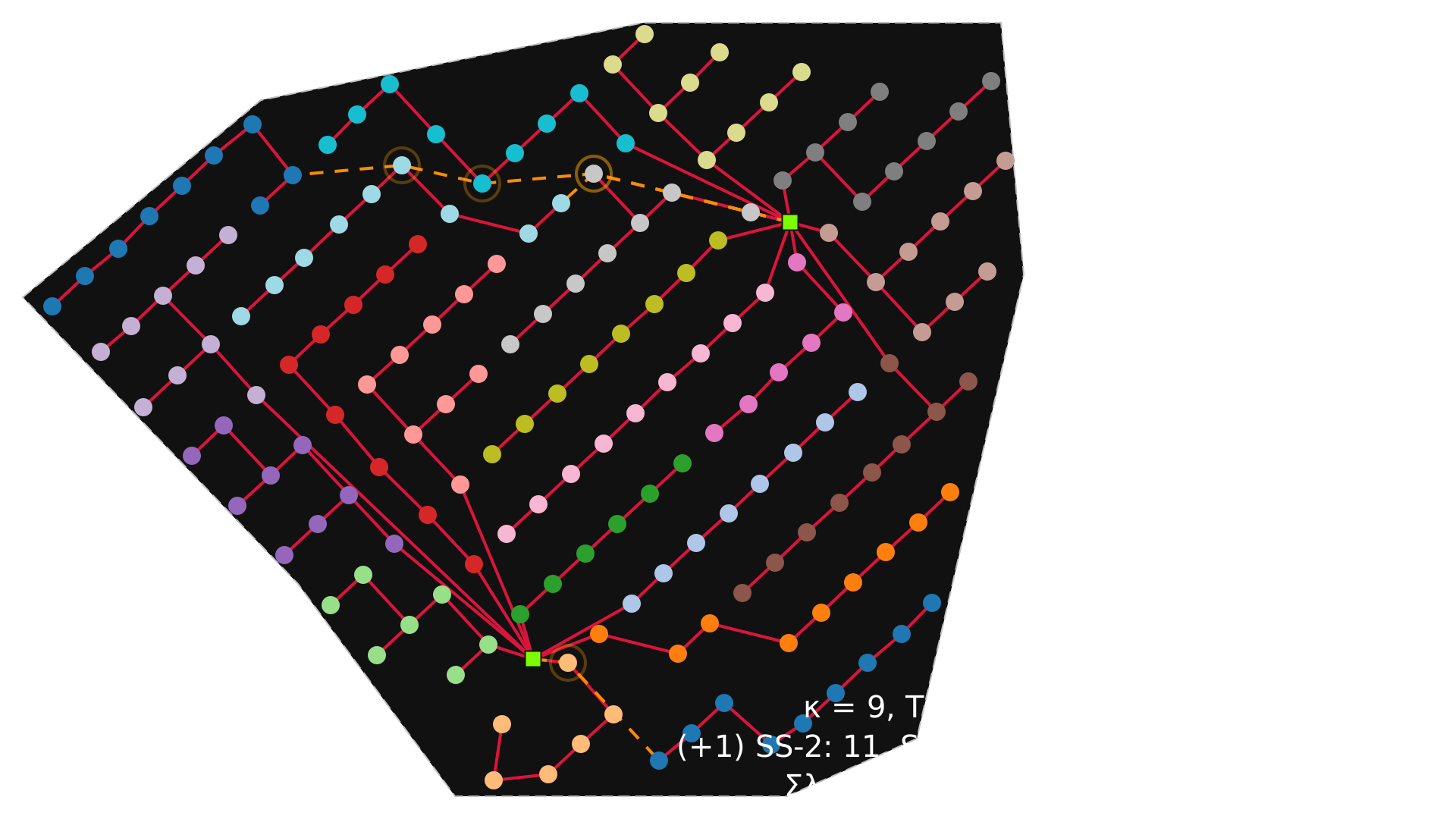
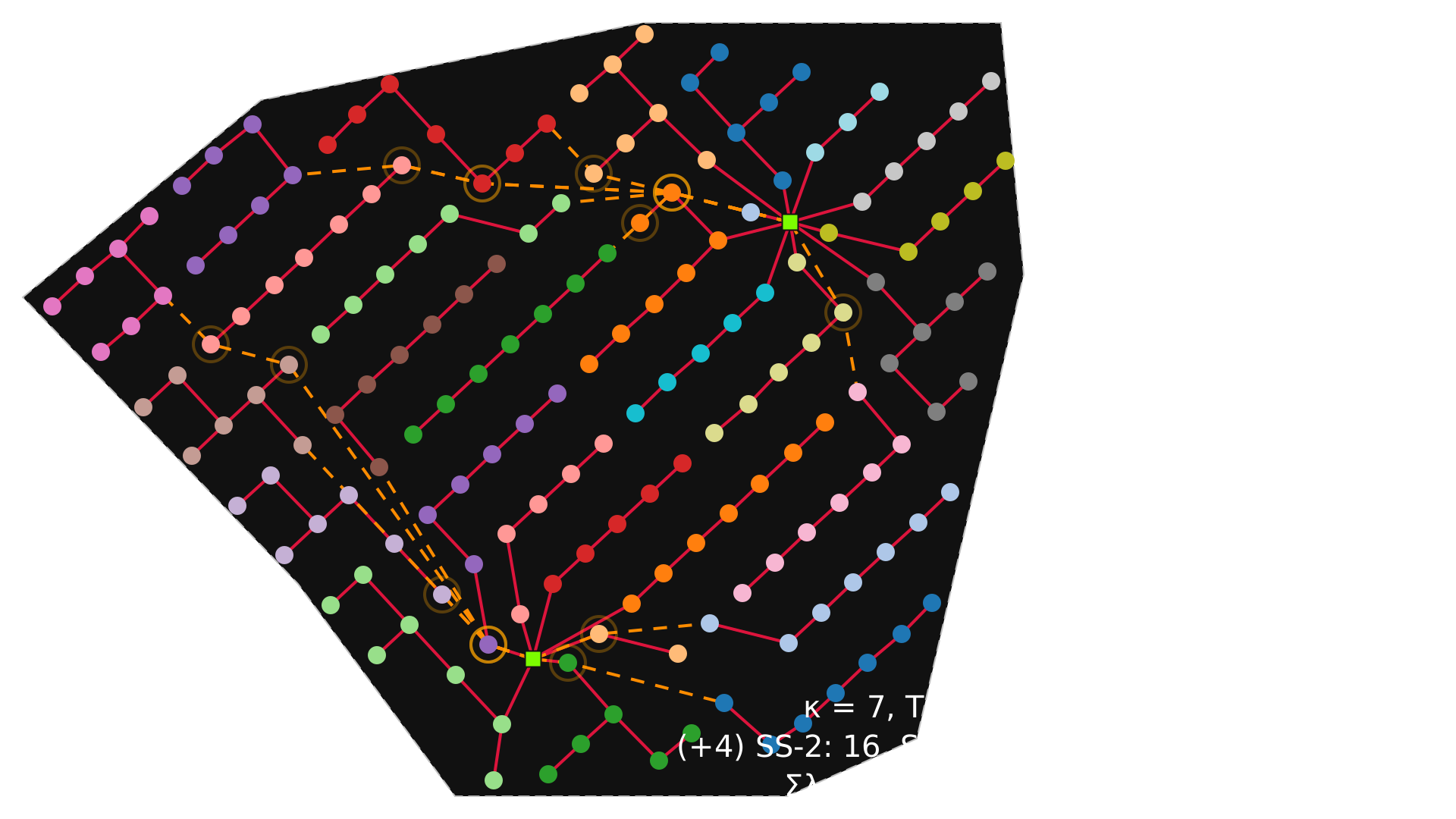
The svgplot() function does not create an inline image immediately upon being called; the SVG is displayed when the object returned by the call is the cell output. To display figures created within code loops, use IPython.display.display.
[10]:
for cap in [9, 7, 5]:
    S_loop = constructor(A, capacity=cap)
    G_loopʹ = G_from_S(S_loop, A)
    G_loop = PathFinder(G_loopʹ, planar=P, A=A).create_detours()
    display(svgplot(G_loop))
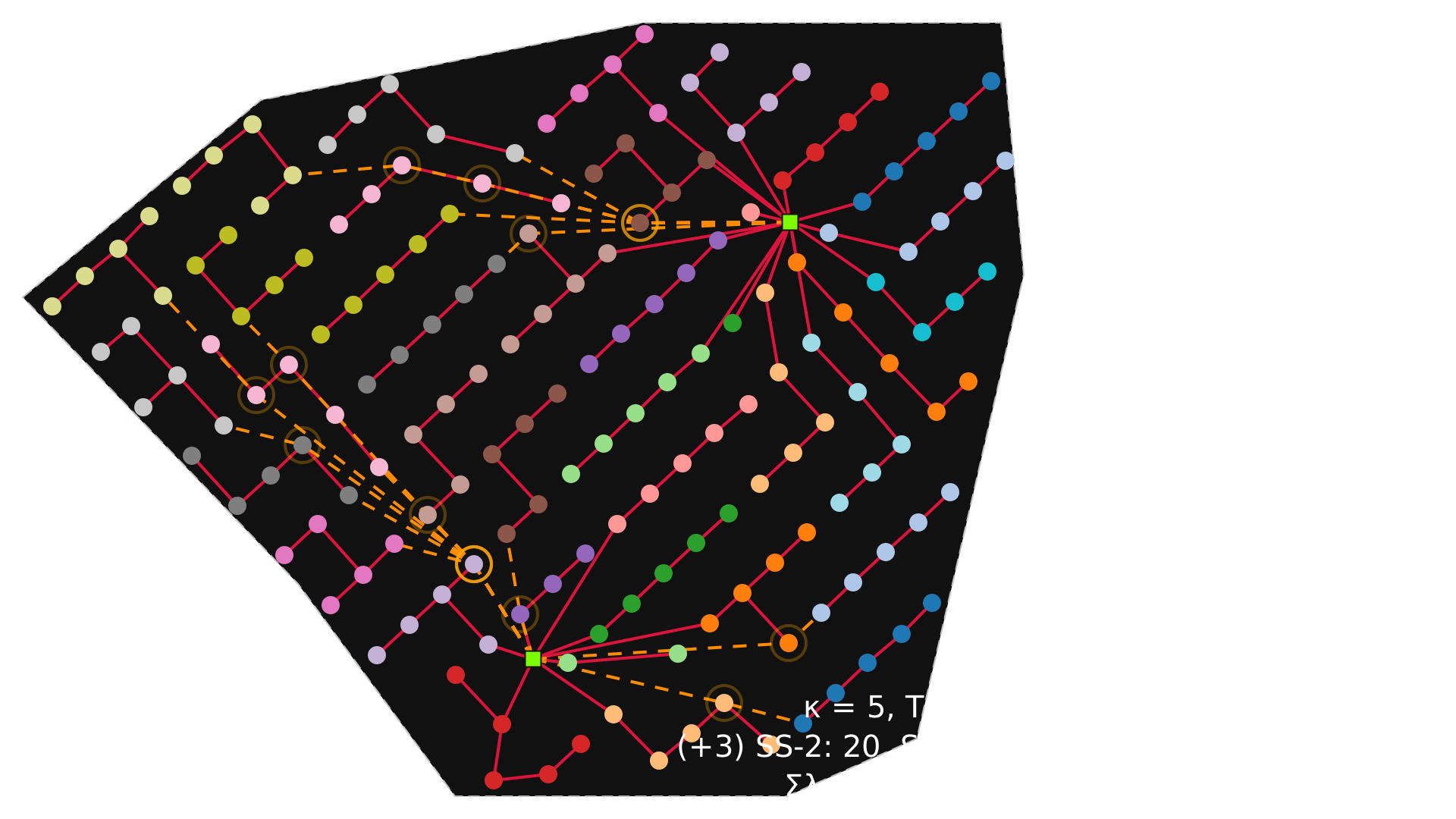
To save an SVG representation to a file:
svgplot(G).save('myfig.svg')
Dark and Light plotting themes
svgplot() automatically tries to match the operating system’s theme via the darkdetect package. If you prefer to enforce a theme programmatically, set the dark parameter to True or False:
[11]:
svgplot(G, dark=False)
[11]:
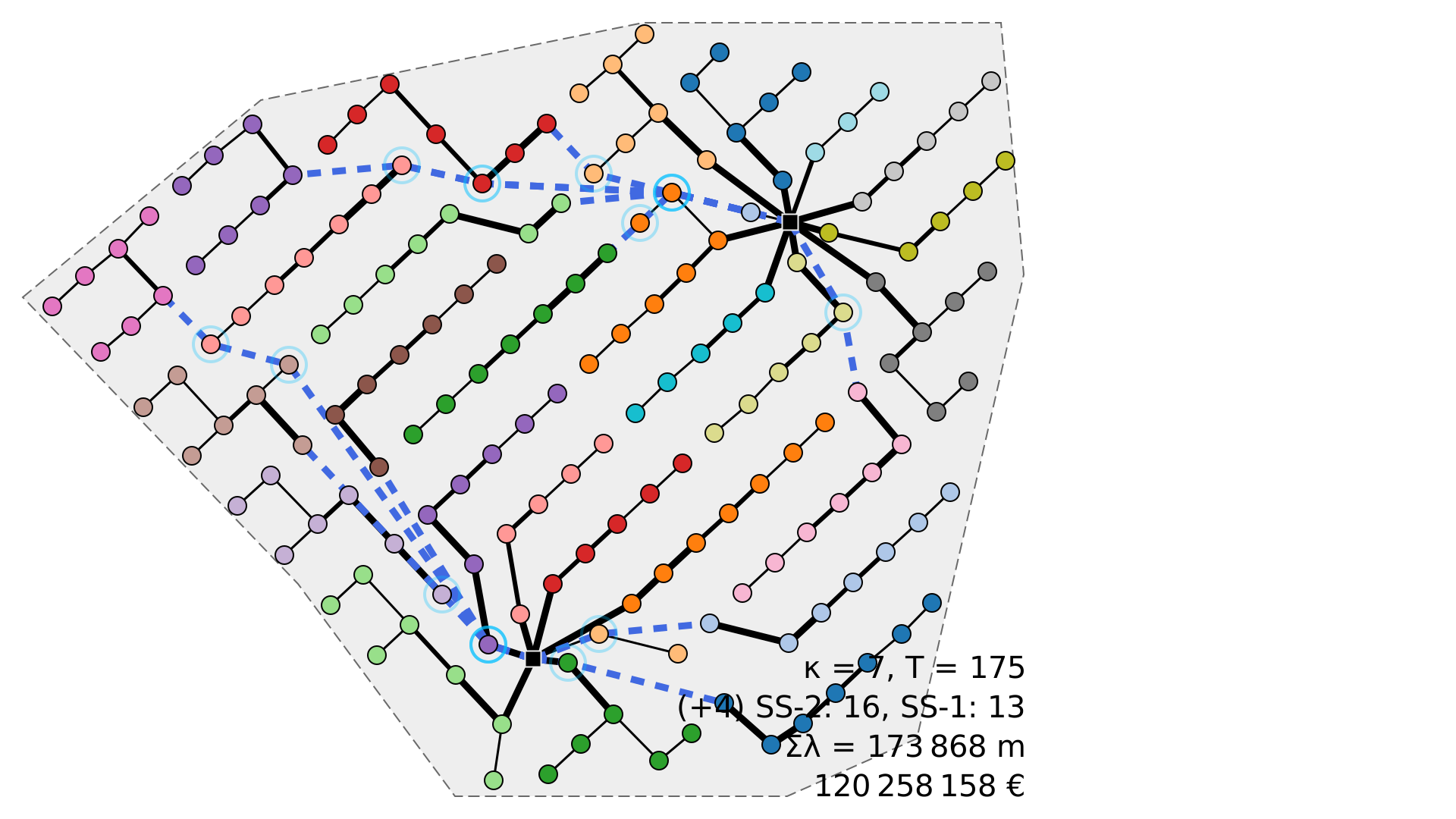
Rotated locations
Each location included in OptiWindNet has a graph attribute called landscape_angle. This represents the rotation needed to orient the wind farm best on a landscape screen. If you prefer to orient the plot with North always up, set landscape=False:
[12]:
svgplot(G, landscape=False)
[12]:
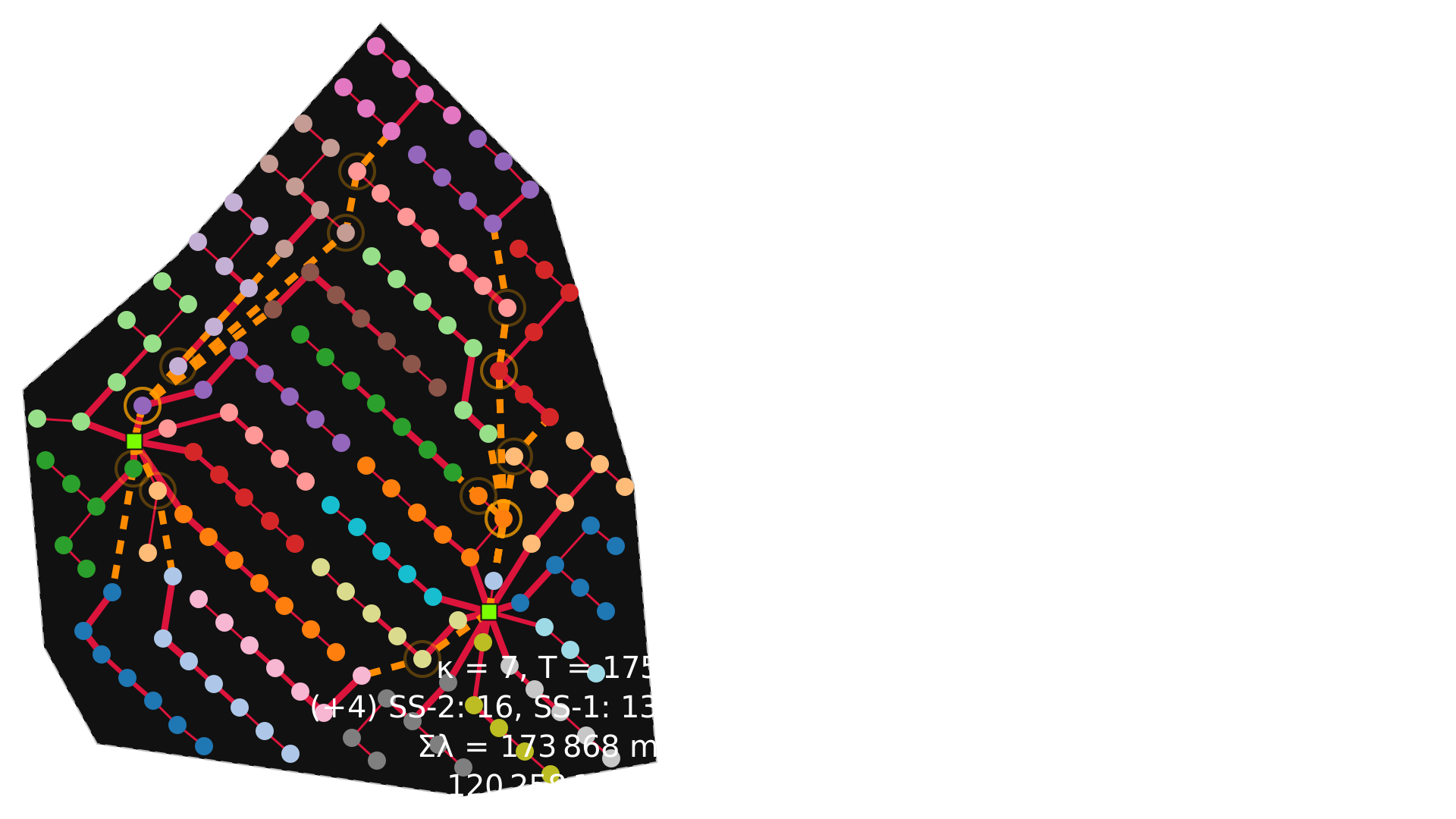
Using Matplotlib-based gplot() & pplot()
OptiWindNet also provides Matplotlib-based plotting functions, gplot() and pplot(), under optiwindnet.plotting.
While SVG-based plots are recommended for direct notebook displays, the Matplotlib-based functions are essential when you want to take advantage of Matplotlib-specific capabilities, such as multi-axis plotting and advanced custom layout integrations.
[13]:
import matplotlib.pyplot as plt
%config InlineBackend.figure_formats = ['svg']
plt.rcParams['svg.fonttype'] = 'none'
from optiwindnet.plotting import gplot, pplot
1. Custom Multi-Axis Subplots
You can pass a pre-existing plt.Axes object to place plots side-by-side or integrate them inside more complex subplots:
[14]:
fig, (ax1, ax2) = plt.subplots(1, 2, facecolor='none', figsize=(9, 3))
pplot(P, A, ax=ax1)
gplot(A, ax=ax2)
[14]:
<Axes: >
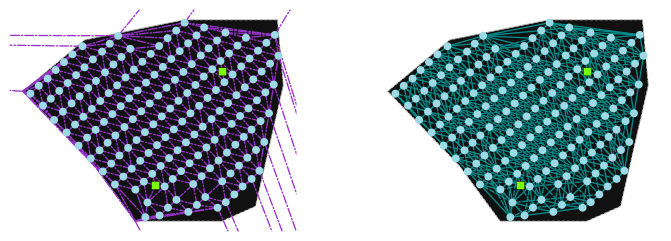
pplot(P, A) is useful for visualizing the pathfinding triangulation mesh and available edges graph A for debugging geometry.
2. Matplotlib Axes Customization and Saving
gplot() returns a standard plt.Axes object. You can use it to adjust any aspect of the figure or to save it directly using Matplotlib backends (such as exporting to PDF, PNG, or EPS formats):
[15]:
ax = gplot(G)
# ax.figure.savefig('myfig.pdf')