

Plotting
This notebook explains the main plotting functions available for a WindFarmNetwork (wfn) instance. There are five primary plots which become available in different stages:
Plots available immediately after initialization of the
wfnobject:wfn.plot_location()wfn.plot_navigation_mesh()wfn.plot_available_links()
Plot available after running the optimization (
wfn.optimize()):wfn.plot_selected_links()wfn.plot()
wfn.plot_location() and wfn.plot() are typically needed, so we present these plots first.👉 Jump to advanced plotting details
Plotting L and G
Import required modules
[1]:
from optiwindnet.api import WindFarmNetwork, load_repository
[2]:
# Display figures as SVG in Jupyter notebooks
%config InlineBackend.figure_formats = ['svg']
Create a sample network
Note: the
load_repository()functionality ofOptiWindNetis used to load a prebuilt Networkx.Graph of the avaible locations. For more details on this functionality look into the notebook about Load repositories containing location data.
[3]:
locations = load_repository()
wfn = WindFarmNetwork(L=locations.anholt, cables=[(2, 1500.0), (5, 1800.0)])
Plot location geometry (L):
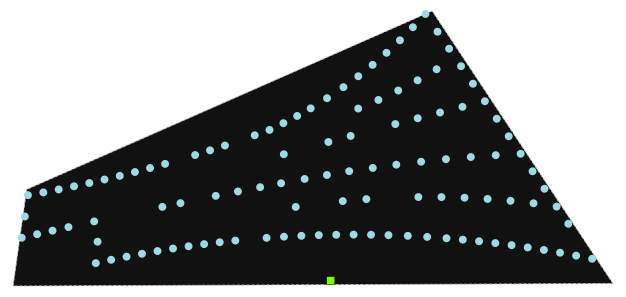
L contains only the raw location data, such as turbine and substation coordinates, borders, and obstacles, without any links or connections between nodes.
As a result, wfn.plot_location() will appear as an empty graph, showing only the individual elements without network links/edges.
This plot is useful to make sure the WindFarmNetwork() instance is initialized properly, before running the optimization.
[4]:
wfn.plot_location()
[4]:
<Axes: >
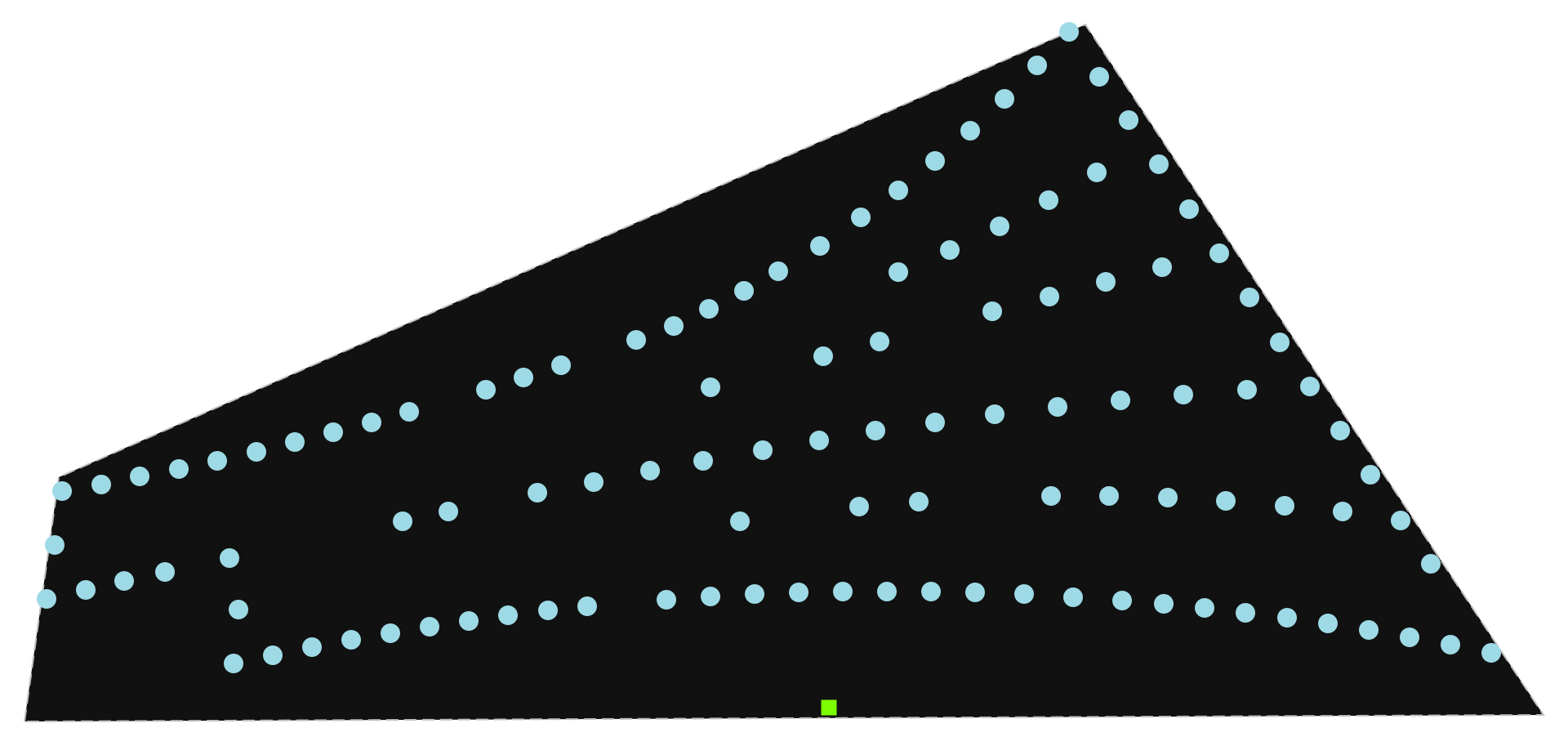
Tip. In a notebook, just put
wfnas the last line of a cell for plotting G.
Before optimization (no
Gyet), it renders the location geometryL.If
Gexists (e.g. after aoptimize()is run), it automatically rendersG.
[5]:
wfn
[5]:
Optimize
To plot and visualize the optimized network, an optimization needs to be performed first. For the sake of simplicity, we run the optimization with the default router in OptiWindNet (i.e. Heuristics-Esau_Williams).
[6]:
res = wfn.optimize()
Plot the Optimized Network Graph
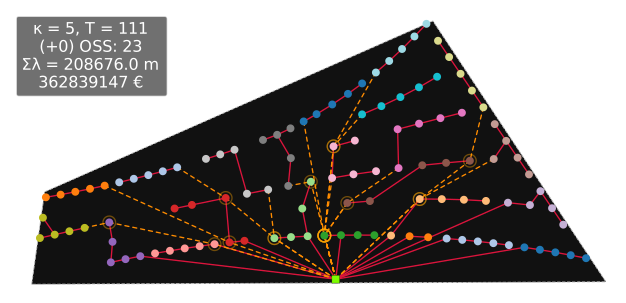
The optimized network graph (G) represents the optimized network with actual routes.
Accordingly, wfn.plot() displays the routes for selected links in the optimized network. The detoured routes are displayed via dashed lines. Detours are the routes created to resolve crossing feeders.
[7]:
wfn.plot()
[7]:
<Axes: >
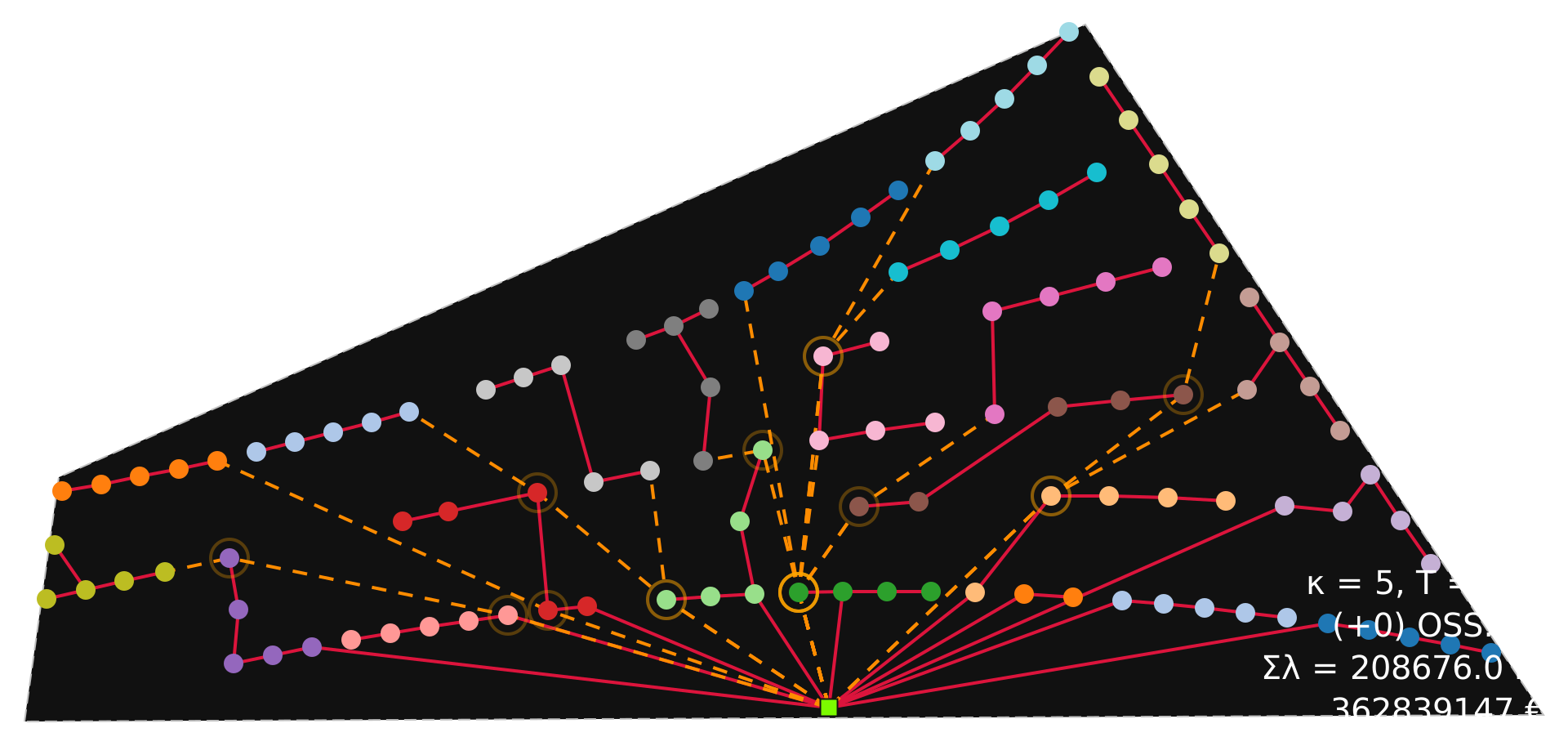
! Reminder: In a notebook, we can plot the optimized network simply by calling
wfn:
[8]:
wfn
[8]:
Plot in a pre-existing axes
It is also possible to provide a pre-existing plt.Axes object within a matplotlib figure:
[9]:
import matplotlib.pyplot as plt
plt.rcParams['svg.fonttype'] = 'none'
fig, (ax1, ax2) = plt.subplots(1, 2, facecolor='none', figsize=(8, 4))

wfn.plot_location(ax=ax1)
wfn.plot(ax=ax2)
[9]:
<Axes: >
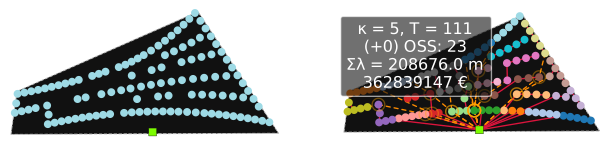
We can add tags to the nodes. For more details on this functionality look into the notebook about plotting
📊 Plotting Properties
In OptiWindNet, users can customize plotting properties such as node tags and legends to control how turbines and substations are displayed in the visual output.
🏷️ Node Tags
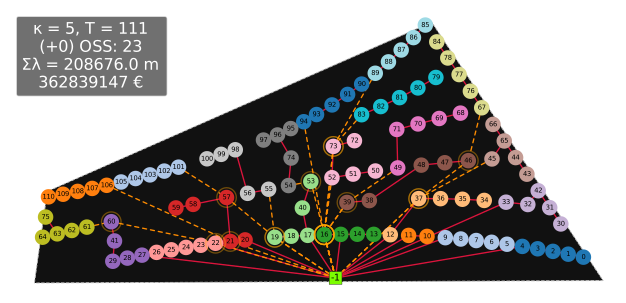
Node tags are used to label turbine and substation nodes in plots and outputs. Tags can be either automatically generated or manually specified.
Automatically Generated Tags
These are generated by
OptiWindNet:Turbines (non-negative indices): Tags follow the order in which turbines appear in the input list.
Substations (negative indices): Tags follow the order in which substations appear in the input list with negaive sign in front.
Manually Provided Tags
Tags can be manually defined in either the associated
.yamlor.osm.pbffiles. InOptiWindNet.These tags are used to label nodes for identification or analysis.
⚙️ Tag Display Logic
The behavior is controlled via the node_tag parameter:
node_tag value |
Behavior |
|---|---|
|
Automatically generated tags will be displayed on nodes. |
|
Tags the nodes by number of turbines routed through node. |
|
Uses custom attributes from the |
🔤 Tag Formatting Guidelines
Turbines are plotted as circles, and substations as rectangles.
The default symbol sizes are optimized for *tags with up to three characters** using the default font size.
Recommendation: If providing manual tags in
.yamlfiles, limit them to three characters to ensure proper display and alignment.
Automatically Generated Tags
These tags are generated by OptiWindNet:
Turbines (non-negative indices): Tags follow the order in which turbines appear in the input list.
Substations (negative indices): Tags follow the order in which substations appear in the input list with negaive sign in front.
[10]:
wfn.plot(node_tag=True)
[10]:
<Axes: >
Manually Provided Tags
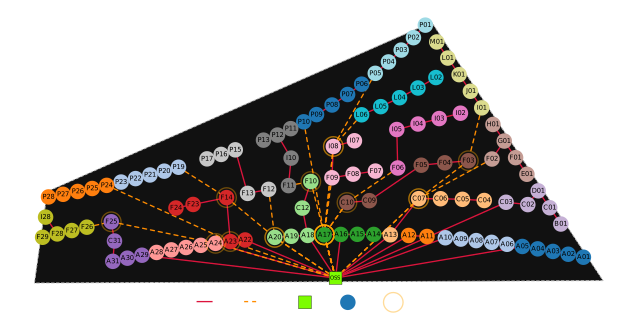
Tags can be manually defined in either the associated .yaml or .osm.pbf files. In OptiWindNet, these tags are used to label nodes for identification or analysis.
• ``.yaml`` files:
In .yaml files, any text defined before the coordinate is interpreted as a node label (label attribute). Example:
SUBSTATIONS: |-
  OSS 56°35.748'N 11°09.174'E

TURBINES: |-
  A01 56°30.477'N 11°11.026'E
  A02 56°30.810'N 11°11.078'E
  A03 56°31.144'N 11°11.123'E
  A04 56°31.478'N 11°11.159'E
  A05 56°31.813'N 11°11.187'E
Here, OSS, A01, A02, etc., are node labels.
• ``.osm.pbf`` files:
In .osm.pbf files, node labels are automatically taken from the name, or ref attribute (if present) in the OpenStreetMap data.
Example (OSM XML structure):
<node id="123456" lat="56.5083" lon="11.1870">
  <tag k="name" v="OSS"/>
  <tag k="power" v="substation"/>
</node>
In this case, the node will be tagged with the label "OSS".
[11]:
wfn.plot(node_tag='label', infobox=False, legend=True)
[11]:
<Axes: >
[12]:
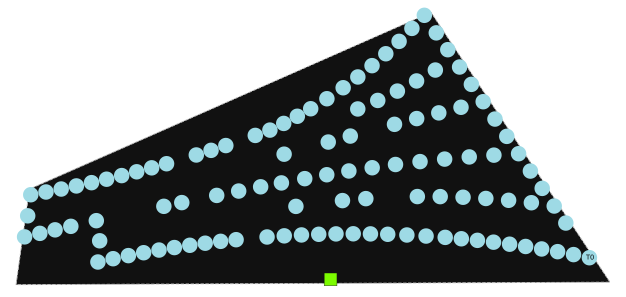
wfn.L.nodes[0]['example_label']='T0'
[13]:
wfn.plot_location(node_tag='example_label')
[13]:
<Axes: >
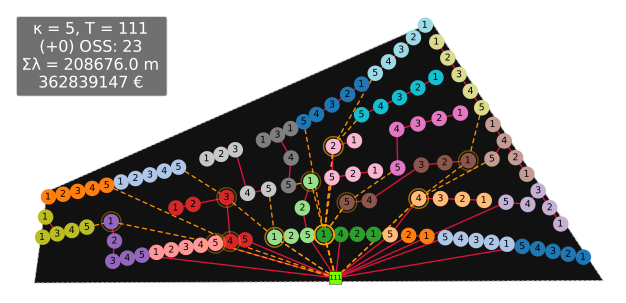
The nodes can also be tagged with the amount of power they export towards the substation:
The load number of a node corresponds to the number of turbines connected through it, indicating how many turbines’ power is routed via that node on the way to the substation.
The substations will be taged with total number of connected turbines.
[14]:
wfn.plot(node_tag='load')
[14]:
<Axes: >
Theme of plots
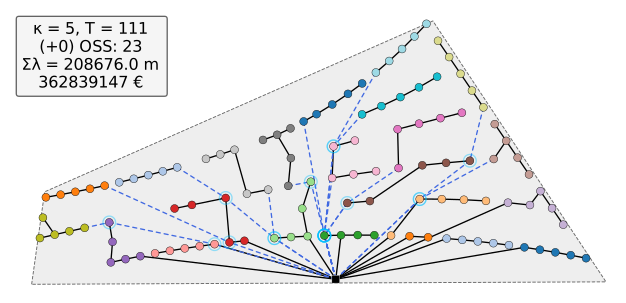
The plots are visualized trying to match the colors used in the figure to the operating system’s theme via Python package darkdetect. This package detects the system’s theme and not JupyterLab’s theme, so it may lead no non-ideal results if they do not match.
The example notebooks are created from a dark-themed system, but the figures might have a light background when the notebooks are run on a different computer.
The theme can be enforced programmatically by setting the argument dark to True or False:
[15]:
wfn.plot(dark=False)
[15]:
<Axes: >
Rotated locations
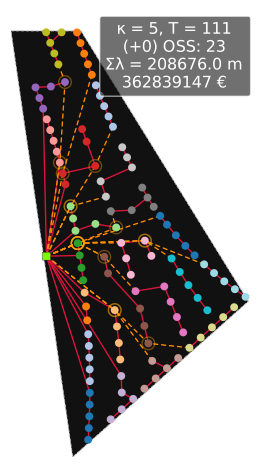
Each location included in OptiWindNet has a graph attribute called landscape_angle.
[16]:
wfn.L.graph['landscape_angle']
[16]:
82
This is the angle that will rotate the site to be in the best orientation for a landscape figure (as opposed to portrait). If the user prefers the orientation to be with the north always up, the argument landscape can be used. Alternatively, ‘landscape_angle’ could be set to 0.
[17]:
wfn.plot(landscape=False)
[17]:
<Axes: >
Advanced Plotting Details
As mentioned at the begining, there are five primary plots which become available in different stages:
Plots available immediately after initialization of the
wfnobject:wfn.plot_location()→ Displays turbine and substation locations, borders, and obstacles.wfn.plot_navigation_mesh()→ Displays the triangulated navigation mesh (planar embedding).wfn.plot_available_links()→ Displays available links in the search space.
Plots available after running the optimization (
wfn.optimize()):wfn.plot_selected_links()→ Displays the selected links in the optimized network. A link represents an abstract connection between two nodes (e.g., turbines and substations), without considering the actual physical path.wfn.plot()→ Displays the actual cable routes for the selected links. A route is the physical path the cable takes through the site, including contours to respect borders/obstacles and detours to resolve crossing feeders.
Two plots (wfn.plot_location() and wfn.plot()) are presented above. The remaining plots (navigation_mesh, available_links, and selected_links which are more relevant for debugging and development purposes) are discussed in this section.
Plot navigation mesh
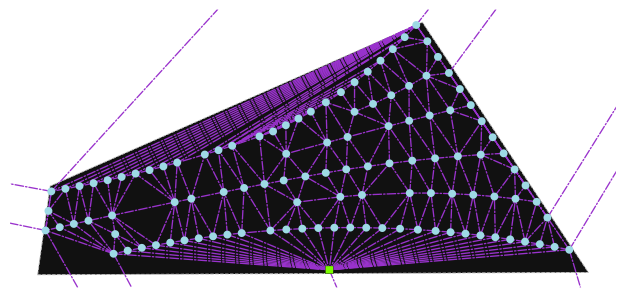
The corresponding graph contains a mesh generated by constrained Delaunay triangulation, represented as a planar embedding; a graph that can be embedded in 2D without any crossing.
[18]:
wfn.plot_navigation_mesh()
[18]:
<Axes: >
Plot Available Links
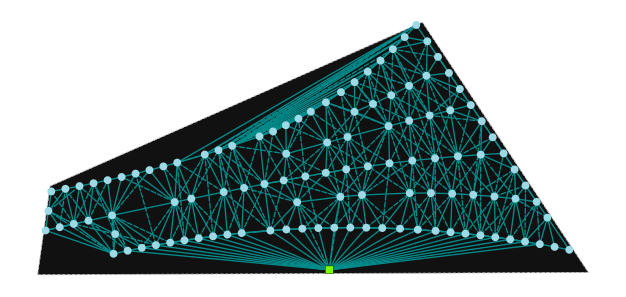
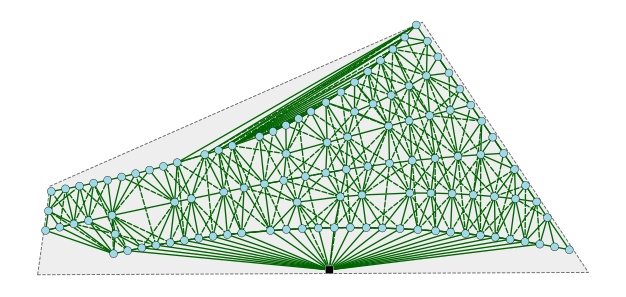
The corresponding graph contains all available links in the search space derived from the Delaunay triangulation, and additional diagonal links.
The available link graph (A) is the primary graph used by downstream algorithms for optimization.
wfn.plot_available_links()
This plots displays the available links using different line styles and colors to distinguish link types:
Line format:
Solid lines: direct Delaunay links
Dashed lines: diagonal or extended links
Line color:
in the dark theme:
Cyan: unobstructed (valid) links
Green: obstructed links (e.g., crossing obstacles)
in the light theme:
Green: unobstructed (valid) links
Red: obstructed links (e.g., crossing obstacles)
[19]:
wfn.plot_available_links()
[19]:
<Axes: >
[20]:
wfn.plot_available_links(dark=False)
[20]:
<Axes: >
Plot Selected Links
wfn.plot_selected_links() displays the links selected in the optimized network from among all available links.
[21]:
wfn.plot_selected_links()
[21]:
<Axes: >
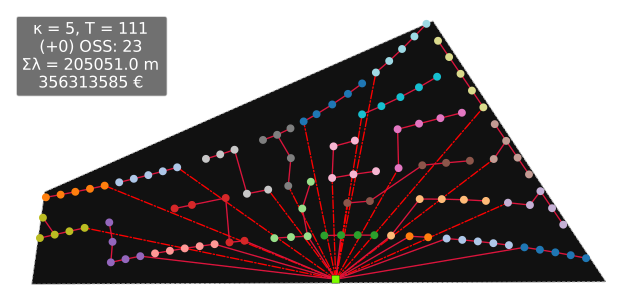
To clarify the difference between wfn.plot_selected_links() and wfn.plot(), it’s important to distinguish between a link and a route:
A link is an abstract connection between two nodes (e.g., turbine to substation), without considering the actual physical path. (Displayed by ``wfn.plot_selected_links()``)
A route is the physical path the cable takes through the site, including contours to respect borders/obstacles and detours to resolve crossing-feeders. (Displayed by ``wfn.plot()``)
For a detailed explanation and visuals, read this paper: To be added: [link to paper]