Inputting Data
This notebook demonstrates the various ways to provide input data to the OptiWindNet’s Network/Router API by initializing a WindFarmNetwork() instance.
Note: Many of the Jupyter notebooks provided include SVG figures as output. To ensure these visuals are displayed correctly in JupyterLab or Jupyter Notebook, make sure the notebook is marked as trusted. In JupyterLab, you can do this by pressing
Ctrl + Shift + Cand selecting Trust Notebook.
Import required modules
[1]:
from optiwindnet.api import WindFarmNetwork, load_repository
[2]:
# Display figures as SVG in Jupyter notebooks
%config InlineBackend.figure_formats = ['svg']
Options for initializing wfn
There are 3 alternatives to initialize WindFarmNetwork() instance within optiwindnet:
From raw data or a preconstructed graph
From a
.yamlfileFrom a
.osm.pbffile
Option 0: From raw data or a preconstructed graph
This option is used when you already have the wind farm layout and parameters defined in a Python data structure or networkx.Graph.
You can directly pass either:
A: Raw wind farm layout data via coordinates: turbinesC, substationsC, borderC, etc., which will be converted into a graph internally, or
B: A prebuilt networkx.Graph via the L parameter (e.g., loaded from external sources or computed elsewhere).
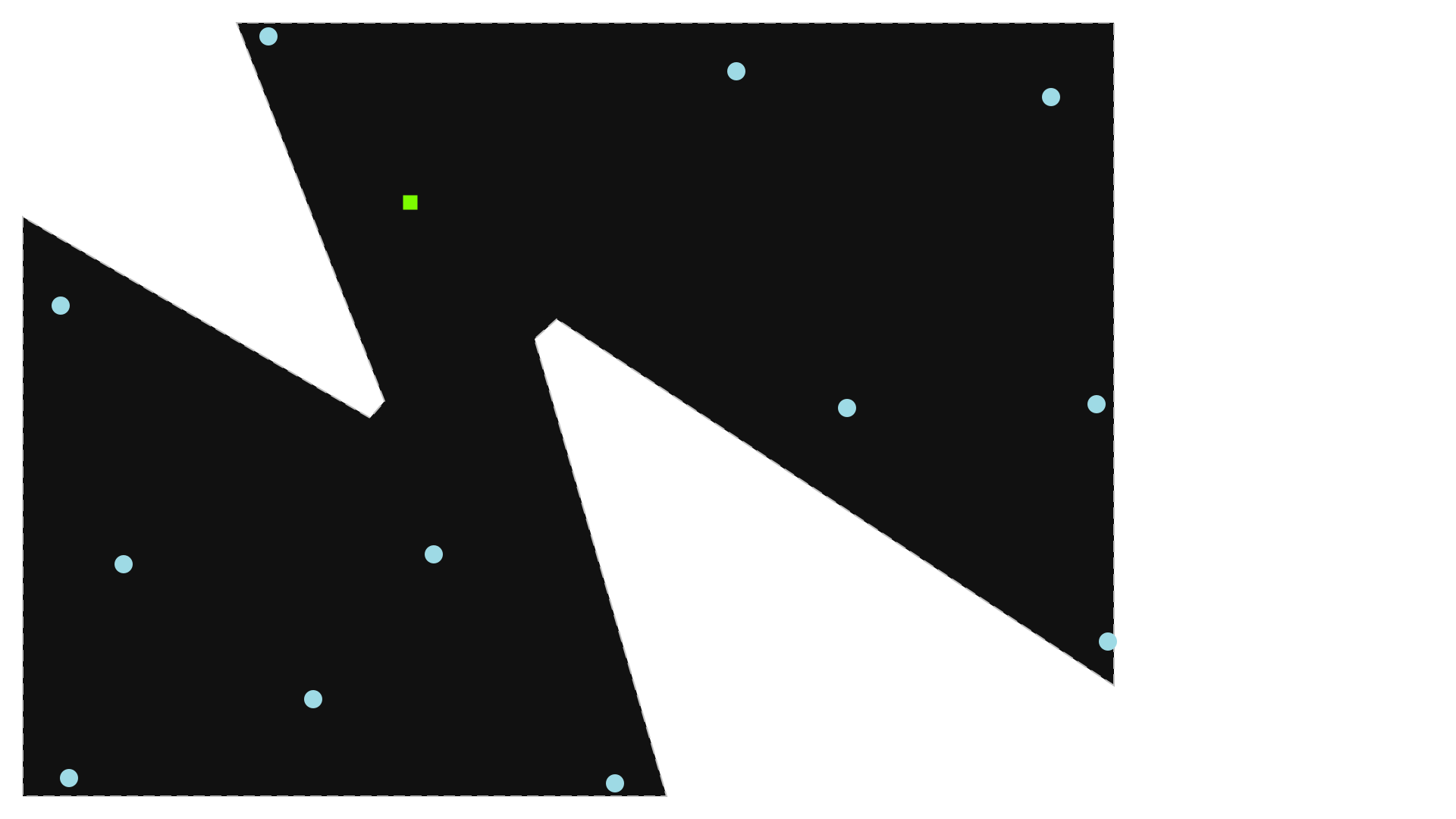
A: Initialize via coordinates:
[ ]:
import numpy as np
# all coordinates are sequences of (x, y) pairs
# if input coordinates are in arrays X and Y, use `np.hstack((X, Y))`
borderC = np.array( # coordinate sequence defines the polygon, last-first segment implicit
    [[1951, 200], [1951, 1383], [386, 1383], [650, 708], [624, 678],
     [4, 1036], [4, 3], [1152, 3], [917, 819], [957, 854]],
    dtype=float)
obstaclesC = [
    # first obstacle
    np.array([[1540, 920], [1600, 940], [1600, 1150], [1400, 1200]]),
    # [second obstacle] ...
]
substationsC = np.array([[696, 1063],], dtype=float)
turbinesC = np.array(
    [[1940, 279], [1920, 703], [1475, 696], [1839, 1250],
     [1277, 1296], [442, 1359], [737, 435], [1060, 26],
     [522, 176], [87, 35], [184, 417], [71, 878]],
    dtype=float)
cables = [(2, 1500.0), (5, 1800.0)]
[4]:
wfn01 = WindFarmNetwork(turbinesC=turbinesC, substationsC=substationsC, cables=cables, borderC=borderC, obstaclesC=obstaclesC)
[5]:
wfn01
[5]:
B: Initialize via the L parameter:
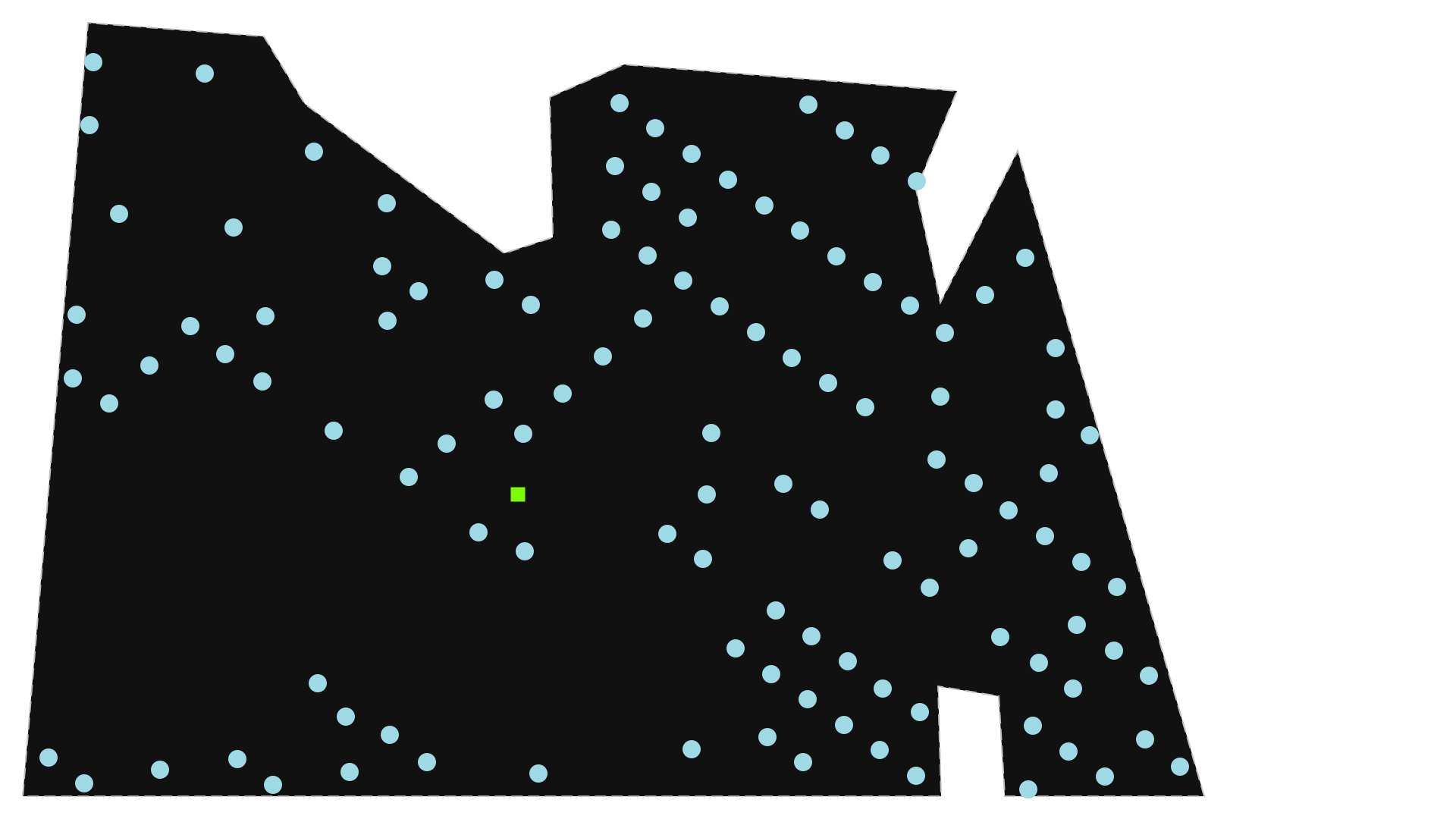
Pass a prebuilt Networkx.Graph of the location geometry (L) to WindFarmNetwork().
Note:
load_repository()loads locations from all files in the given directory. If no path is given, it loads the locations distributed with OptiWindNet. For more details, see Load repositories containing location data.
[6]:
locations = load_repository()
L_prebuilt = locations.seagreen
Initialize WindFarmNetwork() instance with the loaded L_prebuilt:
[7]:
wfn02 = WindFarmNetwork(L=L_prebuilt, cables=7)
wfn02
[7]:
Option 1: From a YAML file:
This option loads the location geometry from a .yaml file, which is useful for working with saved or external project files in this format. A sample code for generating .yaml files with proper structure are provided below.
[8]:
with open('data/example_location.yaml', 'w') as yaml_file:
    yaml_file.write('''
# coordinate format can be "planar" or "latlon"
#   - for "latlon" examples, see `optiwindnet/data/*.yaml`
#   - this field is optional, default is "latlon"
#   - coordinates are converted to floats, so floats may be used as well
COORDINATE_FORMAT: planar

# extents define a polygon:
#   - do not repeat the initial vertex at the end
#   - line breaks are optional
EXTENTS: [
  [1951, 200],
  [1951, 1383],
  [386, 1383],
  [650, 708],
  [624, 678],
  [4, 1036],
  [4, 3],
  [1152, 3],
  [917, 819],
  [957, 854]
]

# obstacles is optional and must be a list of polygons (even if 1 obstacle)
OBSTACLES: [
  [  # first obstacle
    [1540, 920],
    [1600, 940],
    [1600, 1150],
    [1400, 1200],
  ],
  # [second obstacle]
]

SUBSTATIONS: [
  [696, 1063],
]

TURBINES: [
  [1940, 279],
  [1920, 703],
  [1475, 696],
  [1839, 1250],
  [1277, 1296],
  [442, 1359],
  [737, 435],
  [1060, 26],
  [522, 176],
  [87, 35],
  [184, 417],
  [71, 878],
]
''')
Initialize WindFarmNetwork() instance with an exisiting .yaml file:
[9]:
wfn1 = WindFarmNetwork.from_yaml(filepath='data/example_location.yaml', cables=cables)
[10]:
wfn1
[10]:

Option 2: From OSM.PBF input file
osm.pbfstands for OpenStreetMap protobuffer format.
This option loads the location geometry from a .osm.pbf file, which is useful for working with saved or external project files in this format.
The JOSM open-source map editor is recommended if using this format: https://josm.openstreetmap.de/. In addition, the JOSM plugin pbf is required to save in the
.osm.pbfformat. The plugin opendata is useful for importing many common GIS file formats.The OpenStreetMaps objects used for representing a windfarm location geometry are:
nodes
ways
multipolygons (relation between closed ways)
Wind turbines are represented by nodes with the tag
power=generator. Substations are represented either by nodes or by closed ways taggedpower=substationorpower=transformer. Substations based on ways will be reduced to the point at the centroid of the polygon defined by the way.The border of the windfarm can be a closed way tagged
power=plant. If obstacles are required, then the closed way for the border must be combined with the closed ways for the obstacles in a multipolygon with the tagpower=plant(in which case the ways themselves should not be tagged).See
optiwindnet/data/*.osm.pbffor more examples.
Initialize WindFarmNetwork() instance with an existing .osm.pbf file:
[11]:
wfn2 = WindFarmNetwork.from_pbf('data/example_location.osm.pbf', cables=cables)
[12]:
wfn2
[12]: